

Most users start with Keywords Everywhere for search volume data, but the keyword tool goes well beyond that. With multiple widgets, add-ons, and built-in tools, it can cover a big chunk of your SEO workflow.
From keyword discovery and competitor analysis to on-page checks, technical diagnostics, and content planning features, there’s a lot built in. In fact, some of its deeper features don’t always get the spotlight.
Below is a practical overview designed to help you explore the full feature set and make the most of everything it offers.
Keyword Research Features
The main appeal of Keywords Everywhere is convenience. Instead of bouncing between dashboards, it brings keyword discovery and validation into the same places you already research, which makes the whole workflow faster and easier to repeat.0
● In-line keyword metrics in the SERPS
You search like you normally do, and Keywords Everywhere efficiently layers in the metrics and keyword ideas as you go. That means you can spot new targets, sanity-check volume, and collect long-tail terms in real time, without bouncing between tools or breaking your flow.
1. Main Query’s Keyword Level Data
Straight away, you can check the main query’s metrics under the search box, pulled from Google Keyword Planner.

And it’s not just for Google searches either. Keywords Everywhere can surface similar keyword-level data across other platforms too, like YouTube, Amazon, eBay, Etsy, and more, so you can validate demand wherever you search.
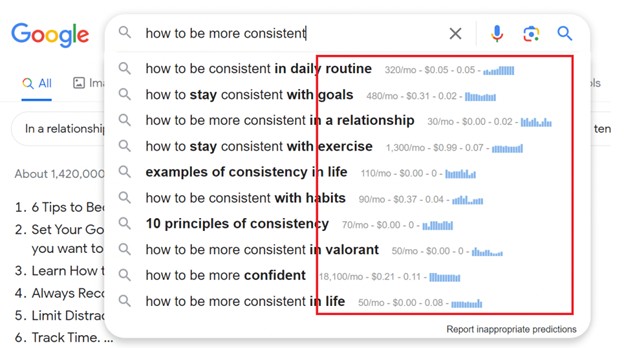
2. Query Suggestions’ Keyword Data
Keywords Everywhere also shows keyword-level data directly within the autosuggest section of Google and other major platforms.


3. Search Results SEO Data
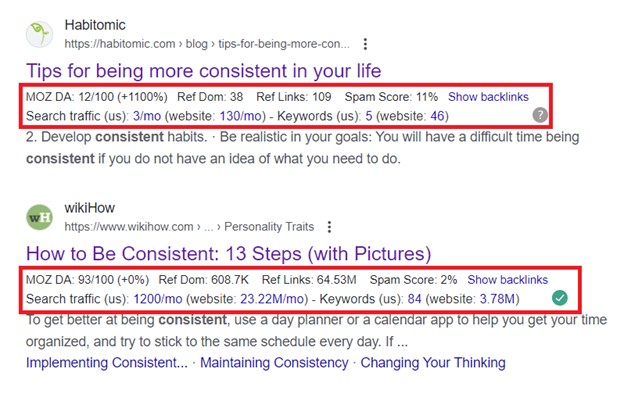
As you browse Google SERPs, Keywords Everywhere also shows Mozbar-style metrics as well as quick access to ranking pages’ backlinks, search traffic, organic keywords, and more. Just hover over the blue links to pull up the data instantly.
● Other Widgets in the SERPS
Beyond the in-line metrics, Keywords Everywhere adds a full set of SERP widgets that help you generate more keyword ideas, check difficulty, view trend charts, and even run quick SEO reports on ranking pages, all without leaving the results page.
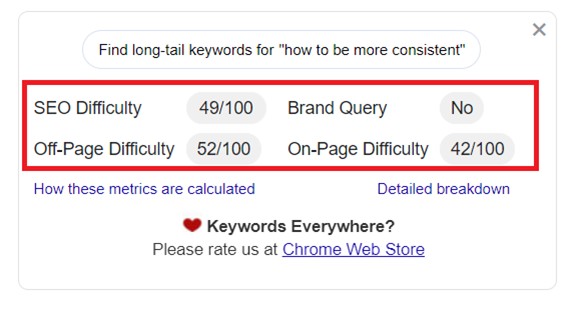
1. Main Keyword’s SEO Difficulty
In the top widgets, you’ll see the keyword’s SEO difficulty upfront, broken down into on-page and off-page factors.
2. Search Volume Trend
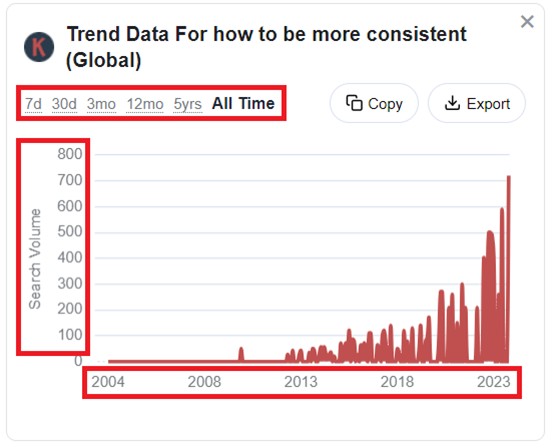
It also shows a search volume trend chart, so you can compare recent spikes with longer-term performance, including all-time history back to 2004.
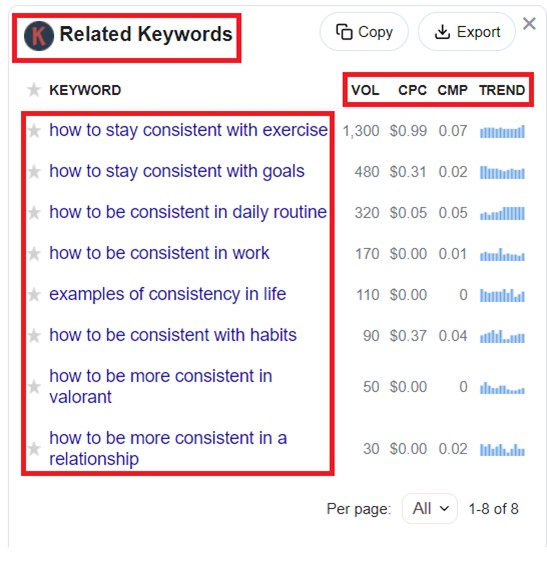
3. Related Keywords
This widget surfaces closely related keyword ideas and lets you compare key metrics like search volume and CPC at a glance.
You’ll also notice the star icon beside each term, which lets you save keywords to your Favorites so you can keep your research organized as you go.
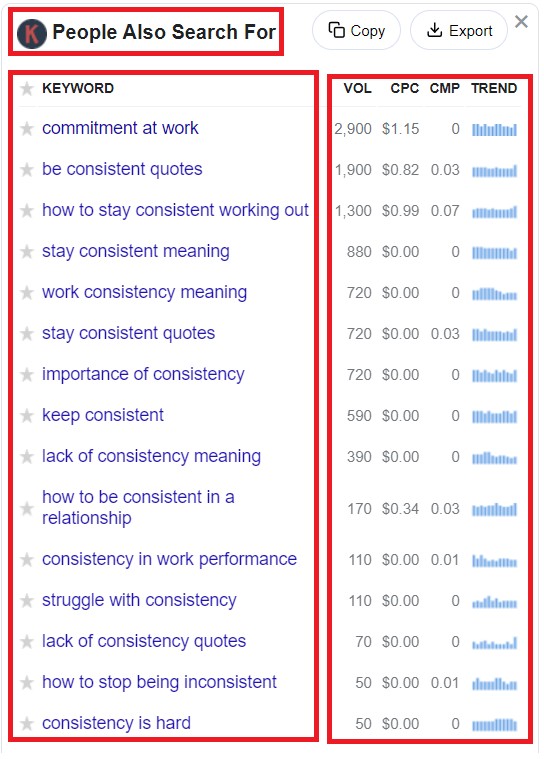
4. People Also Search For Widget
This widget is another useful place to find related keyword opportunities and pick up extra context you can incorporate into your content.
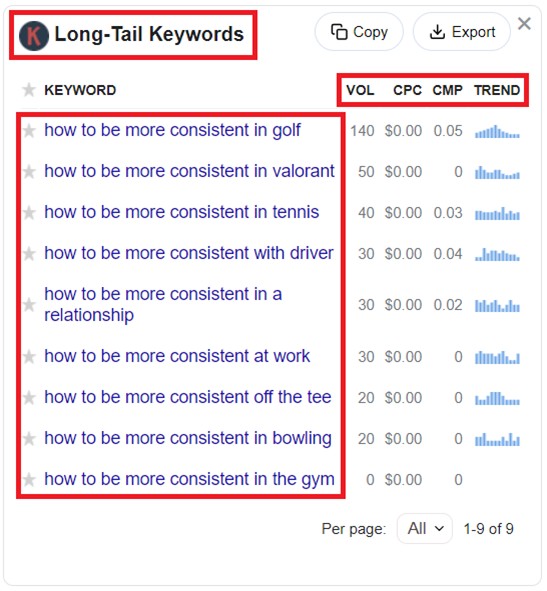
5. Long-tail Keywords
Here you’ll find longer, more specific keyword variations. They usually have lower search volume, but they can also be easier to compete for. Targeting long-tail terms is a common strategy for quicker wins and steady authority growth.
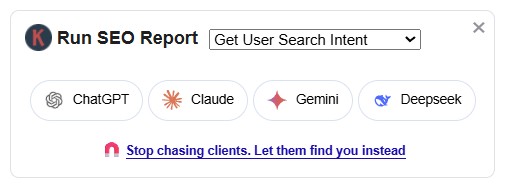
6. Run SEO Report
If you do a lot of content planning, this widget saves you time. Run SEO Report lets you generate AI SEO Reports straight from the SERP to analyze intent, content type trends, and competitiveness without doing everything manually. You can also use it for clustering keywords, reviewing SERP title patterns, estimating rankability requirements, and generating anchor text ideas for topic clusters.
7. Multi-platform keyword intelligence
Worth emphasizing, Keywords Everywhere gives you multi-platform keyword intel across YouTube, Amazon, eBay, Etsy, and 20+ other platforms, which is a real time-saver if you research across multiple channels. Instead of doing the same keyword checks in separate tools, you can validate demand and find related ideas in-context, right where you’re searching. This also helps you catch intent differences early, since the same topic can behave very differently depending on the platform.
It also fills in a big gap by showing search volume in places that usually leave you hanging, including Google Search Console, Google Keyword Planner, and Google Trends. So instead of piecing things together manually, you get a quicker, clearer sense of demand right where you’re already working.
8. SEO Minion’s One Click PAA Question Export from Google SERPs
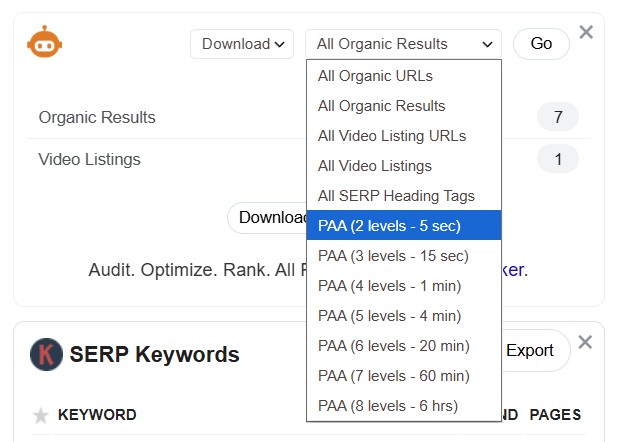
SEO Minion comes bundled with the Keywords Everywhere toolkit, and one of its useful features is the PAA Question Export from Google SERPs. It’s great for quickly turning “People Also Ask” questions into usable content ideas. With one click, you can download PAA questions from Google, and you can even expand up to 8 levels deep to pull more related questions as long-tail targets or supporting sections on a main page.
Beyond keyword research, it also helps with lightweight SEO checks, including quick on-page reviews, basic technical spot-checks like broken links and redirects, SERP feature extraction, and structured data validation, which makes it a handy “utility” tool to keep in your workflow.
Also Read: How to Use SEO Minion
9. Long-tail keyword generation via autosuggest via Keyword Planner
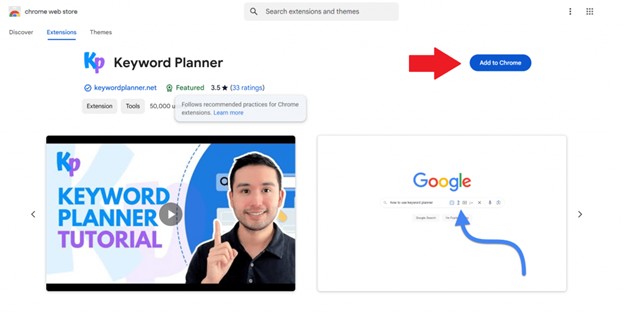
If you like using autocomplete for keyword research, Keyword Planner makes the process a lot smoother. It plugs into Google, YouTube, Amazon, eBay, and Etsy and surfaces autosuggest-based keyword lists next to the search bar. It also sorts them into long-tail, question, comparison, and preposition keywords, so you can grab ideas quickly and stay in one workflow instead of bouncing between tools.
Learn More: How to Use Keyword Planner
● Keyword Keg
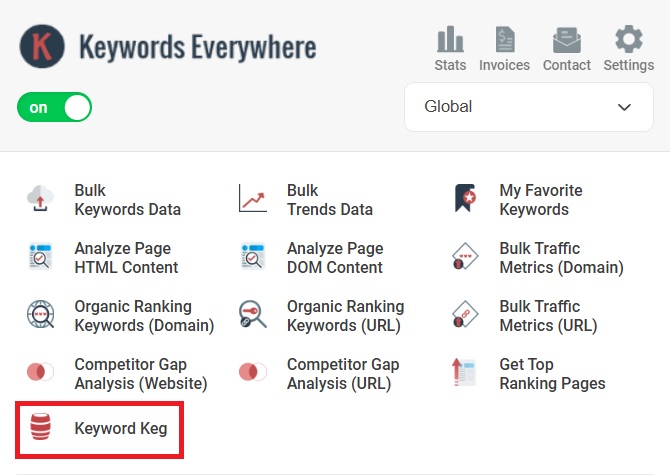
Keyword Keg expands Keywords Everywhere with a more dedicated keyword discovery tool. It can pull in thousands of keyword ideas from multiple autosuggest sources, then help you filter, categorize, and export them for SEO or PPC work. It’s a useful upgrade when you need more than the usual on-page keyword overlays and want a faster way to build larger keyword lists. Access is currently included on Gold and higher plans.
● Other Free Keyword Research Tools
Keywords Everywhere also gives you free tools for the parts of keyword research that need a closer look. Beyond keyword search volume, you can check SERPs, rankings, competitor gaps, country-level demand, and trend movement to figure out which keywords are actually worth targeting.
1. SERP Checker
The SERP Checker lets you check the actual ranking pages for a specific keyword in a specific location. You can choose the country, state, or city, then view what Google is showing for that keyword on desktop, mobile, or tablet.
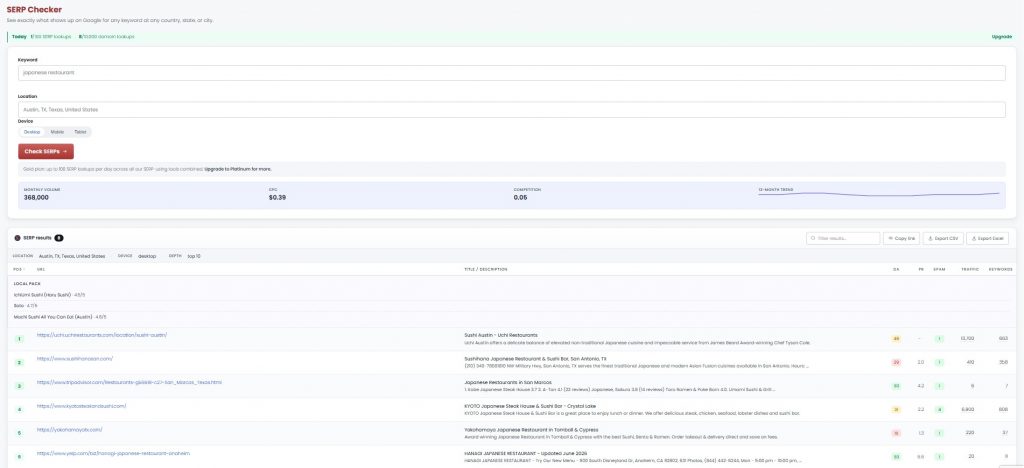
This is useful when you want to see the real competition behind a keyword, not just its search volume. You can review the top-ranking URLs, titles, descriptions, local results, domain metrics, traffic estimates, spam score, and ranking keywords in one view.
This is especially useful when you want to:
- Check which pages rank for a keyword in a target city, state, or country
- Compare SERPs across different locations
- See whether local businesses, directories, blogs, ecommerce pages, or big brands dominate the results
- Understand what type of content Google prefers for that query
- Check whether a keyword is realistic before creating a page
- Review competitors’ ranking pages, titles, and descriptions
- Find location-specific SEO opportunities
- Compare desktop, mobile, and tablet results
- Spot SERP features like local packs, snippets, videos, or PAA results
2. Organic Ranking Checker
The Organic Ranking Checker lets you enter a domain, subdomain, or specific URL and see which Google keywords it ranks for, along with its position, estimated traffic, search volume, CPC, competition, and trend data.
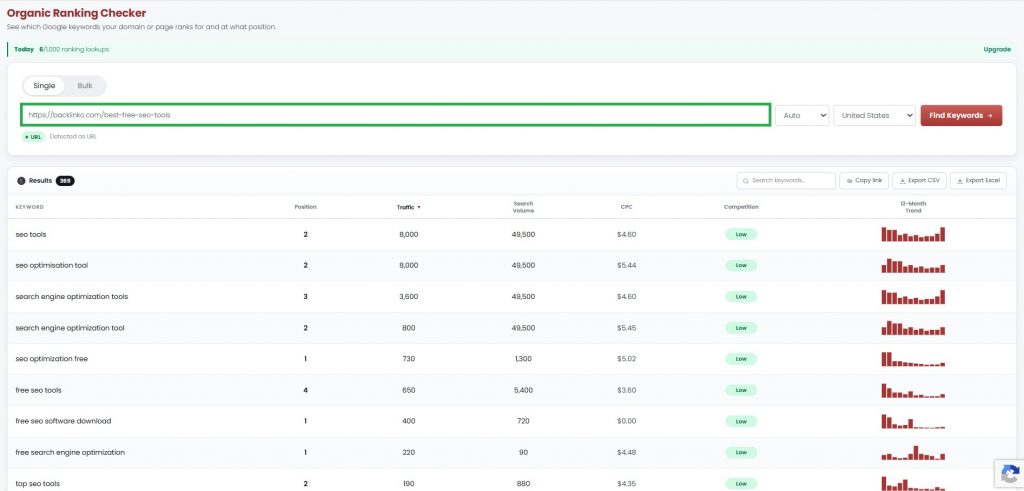
For your own website, Google Search Console is still the best source because it gives you first-party performance data. But this tool is especially useful when you want to check pages you don’t own. For example, you can enter a competitor’s blog post, landing page, or product page and see what keywords it is ranking for.
This is useful for:
- Checking what keywords a competitor page ranks for
- Finding hidden keyword opportunities from pages already performing well
- Seeing which keywords drive traffic to a specific URL
- Comparing your content against competing pages
- Finding page-two or page-three keywords you can optimize further
- Studying how one strong page ranks for multiple related terms
- Building content refresh ideas based on ranking keywords
- Spotting keyword themes to include in a new or updated page
The main value is that it helps you reverse-engineer what is already working. Instead of guessing which keywords a page is targeting, you can see the actual terms it ranks for and use that insight to improve your own content plan.
3. Keyword Gap Analysis
The Keyword Gap Analysis tool helps you find the keywords your competitors rank for but you don’t. You can compare your site against up to 10 competitor domains or webpages, then see where they’re getting visibility that your site is missing.
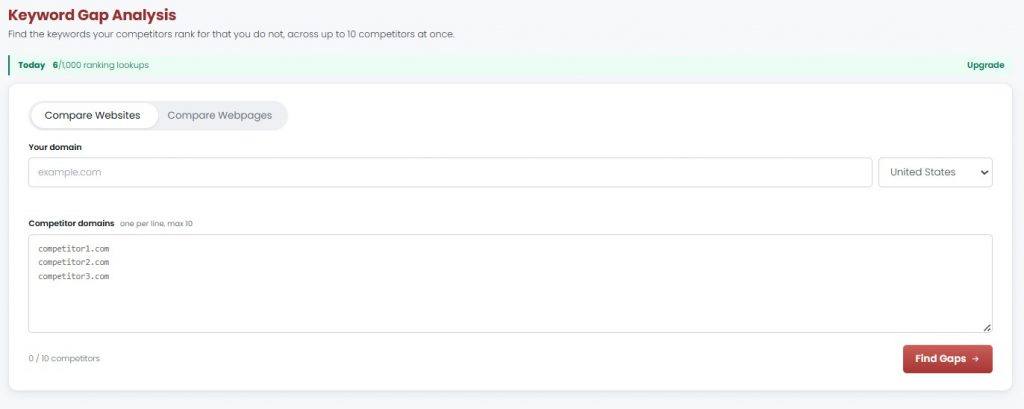
In practice, this is useful for:
- Finding content topics your competitors already rank for
- Spotting missing keywords in your blog, product pages, or landing pages
- Comparing your site against multiple competitors at once
- Finding keyword gaps by domain or specific webpage
- Building new content ideas based on proven search demand
- Updating existing pages with missing keyword angles
- Understanding where your SEO coverage is weaker than others in your niche
This gives you a shortcut to proven opportunities. Instead of starting from a blank keyword list, you can see what’s already working for competitors and decide which gaps are worth closing on your own site.
4. Search Volume Checker
Our Free Search Volume Checker is useful when you already have a list of keyword ideas and want to validate them in bulk. Instead of checking keywords one by one, you can paste a full list and get monthly search volume, CPC, competition, and 12-month trend data in one place.
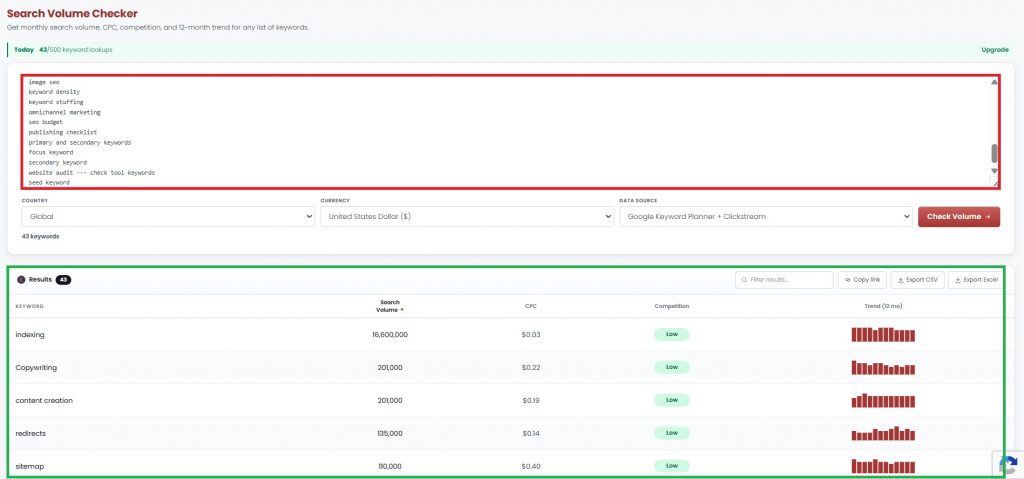
This works well with traditional keyword research, but it’s also handy if you brainstorm keyword ideas using ChatGPT or another AI tool. For example, you might ask ChatGPT for blog topic ideas, product keywords, or long-tail variations. Then, instead of guessing which ones are actually worth targeting, you can paste that list into the Search Volume Checker and see which terms have real demand.
You can use it to:
- Validate keyword ideas from ChatGPT or brainstorming sessions
- Check search volume for a full keyword list
- Compare CPC and competition across multiple terms
- Sort keywords into primary and secondary targets
- Spot seasonal or declining terms using trend data
- Clean up keyword lists before content planning
- Export keyword data to a spreadsheet for deeper analysis
So instead of letting a long keyword list sit unused, you can quickly turn it into a working content roadmap, separating strong opportunities from nice-sounding ideas that may not bring much search traffic.
5. Keyword Volume Checker
Instead of relying on one global number, you can see where demand is actually coming from, plus CPC, competition, and trend data by market.
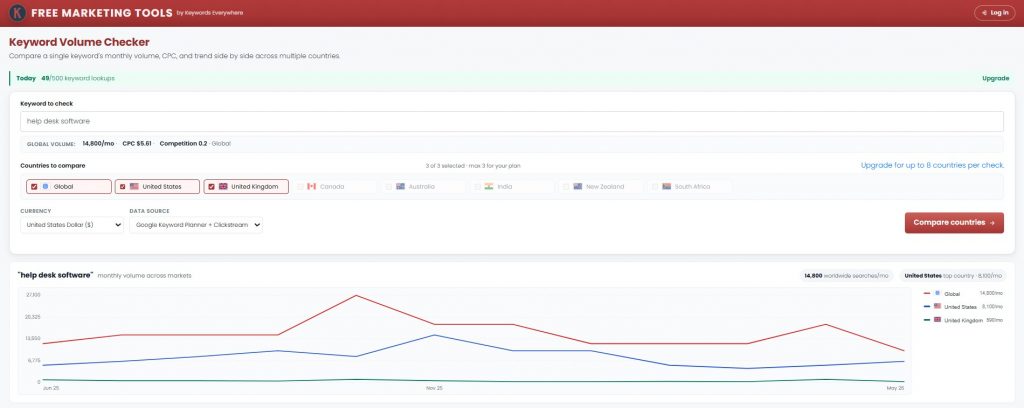
This is useful for international SEO, SaaS landing pages, ecommerce expansion, and any business targeting more than one region. You can quickly check whether a keyword is worth localizing, which market has stronger demand, and whether global volume is hiding uneven country-level interest.
Free accounts can compare up to 3 countries at a time, with wider country coverage available on higher plans. It’s a quick way to see whether a keyword has real opportunity in multiple markets or if most of the demand is coming from just one place.
6. Trend Finder & Tracker
The Trend Finder helps you discover fast-growing topics before they become overly competitive. Instead of only researching keywords that already have established search volume, you can spot rising trends early and decide whether they’re worth creating content around.
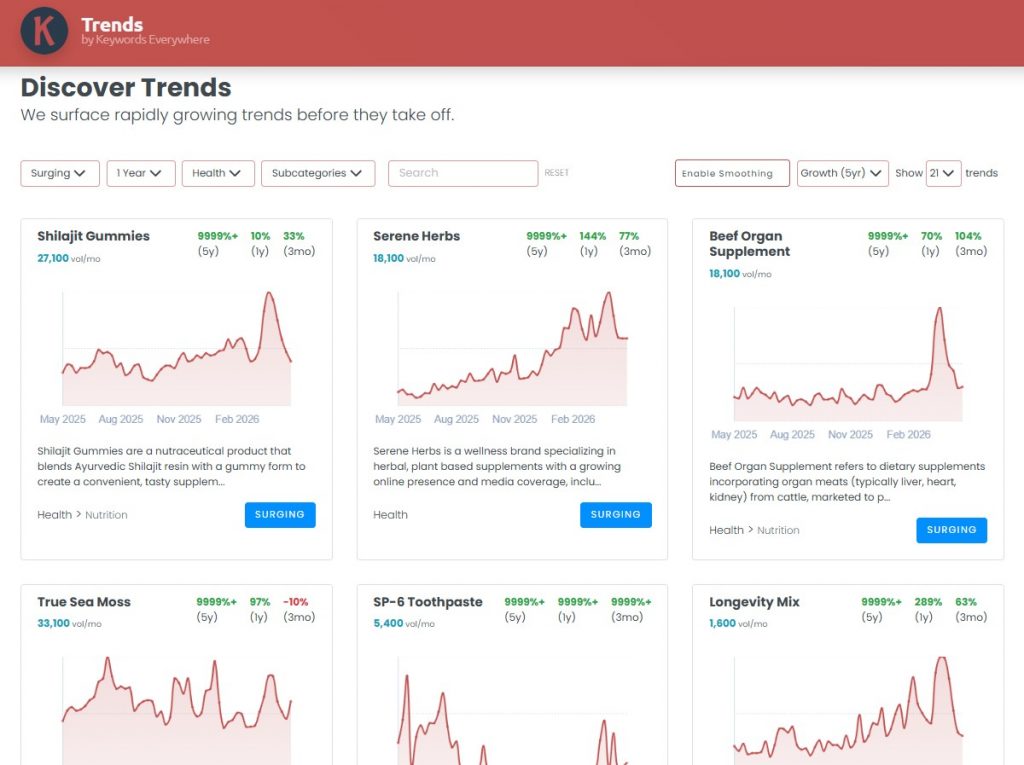
This is useful for niches where demand changes quickly, like ecommerce, health, beauty, SaaS, AI tools, finance, and seasonal products. You can filter by category, subcategory, growth window, and trend status to find topics that are starting to move.
You can use it to:
- Find rising topics before competitors catch on
- Discover new product, content, or niche ideas
- Spot seasonal or fast-growing search demand
- Build content around trends before they peak
- Find early opportunities in specific categories
- Validate whether a topic is growing over 3 months, 1 year, or 5 years
It’s all about timing, helping you catch topics while they’re still gaining momentum, instead of only chasing keywords after everyone else has already written about them.
Competitive Research Features
Keywords Everywhere is not just for keyword ideas. It also includes a set of competitive research features that help you quickly size up what is already ranking, spot gaps, and pull useful competitor data without needing a full SEO suite.
● Search Results SEO Data (Moz metrics in Google SERPs)
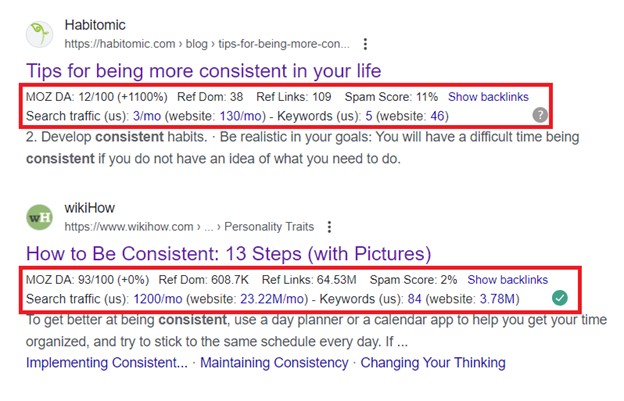
As you browse Google SERPs, Keywords Everywhere adds Moz-style metrics right next to each result, so you can quickly gauge how “strong” the ranking pages are even without opening them.
● Backlinks for ranking pages (quick access)
You can click into backlink data for any ranking URL straight from the SERP, which makes it easier to gauge how “link-heavy” the competition is. When most top results are backed by strong link profiles, it’s usually a sign you’ll need more authority or link equity to break into the top spots.

Search traffic for ranking pages (quick access)
You can view search traffic estimates for ranking URLs right from the SERP, which helps you gauge how much upside a keyword actually has. Low traffic across the top results can be a red flag that the keyword is too niche, low-click, or mostly answered on the SERP.
Organic keywords for ranking pages (quick access)
You can also see the organic keywords a ranking page shows up for, which is great for finding secondary terms you might want to include in your content. Just click the blue links, and you’ll get redirected to the full breakdown of results.
● Competitor Gap Analysis
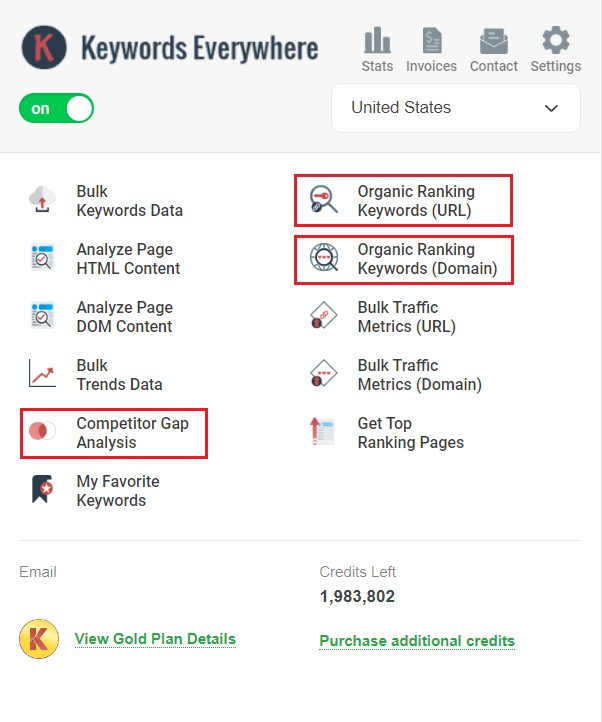
This feature allows you to compare your site against up to five competitors to find keywords they rank for that you don’t. If you already know who you compete with, this feature helps you build a clean list of keywords and topics you’re missing.
● Bulk Traffic Metrics (URL and Domain)
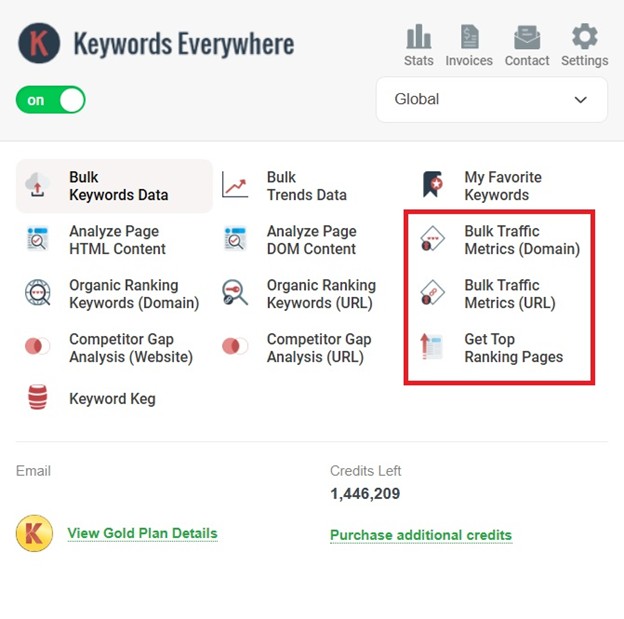
The Bulk Traffic Metrics tool removes the manual work of checking pages one by one. Instead of bouncing between spreadsheets and SEO tools, you can paste up to 1,000 URLs or domains and get a quick snapshot of their performance in one view.
You can use it to:
- Audit competitors at scale: Identify a competitor’s top-performing pages at a glance, along with pages that may be underperforming.
- Qualify Lead Lists: If you are doing outreach or guest posting, this helps you instantly filter out low-traffic sites so you can prioritize higher-value prospects.
- Validate keyword lists: Check whether the domains ranking for your target terms actually attract meaningful traffic, so you do not waste time on low-value opportunities.
- Streamline content audits: Bulk-review your own URLs to spot which pages or sections are worth updating, consolidating, or reworking first.
By putting all of this into a single view, Keywords Everywhere turns what could be hours of repetitive research into a much faster, more decision-friendly process.
● Get Top Ranking Pages
Unlike Bulk Traffic Metrics, where you need to paste in a list of URLs or domains, Get Top Ranking Pages works directly from the page you’re already visiting. Just open any page on a site, click Get Top Ranking Pages, and the tool will pull up that domain’s top organic pages for you.
This makes it a fast way to see which pages on a competitor’s site are doing the most SEO heavy lifting. Instead of guessing what content is working, you get a ranked list of top-performing URLs along with estimated monthly traffic and the number of ranking keywords.
By using this report, you can:
- Identify Proven Content Pillars: Quickly see which topics and page types are driving the most value for competitors, so you can model your own strategy after what is already performing well.
- Analyze Traffic Distribution: View estimated monthly organic SEO traffic and the total number of ranking keywords for each top URL to understand the “reach” of individual pages.
- Uncover Market Opportunities: By comparing a competitor’s top pages against your own content, you can spot high-traffic subjects you haven’t targeted yet.
- Streamline Site Audits: Efficiently assess the organic strength of any website while browsing, making it easy to evaluate rivals or potential partners without leaving your workflow.
Use this feature to identify high-performing pages and prioritize your content strategy based on what is already winning for your competitors.
Keywords Everywhere also has a separate Top Pages Finder tool that lets you find the top-traffic pages on any domain. Just visit the tool, enter a domain, and it will pull up the pages that are likely driving the most organic traffic.

You can also run checks in bulk. The tool supports one domain per line, with up to 20 domains per submission, and paid plans unlock up to 1,000 domains per submission. That makes it useful when you want to compare several competitors at once instead of checking them one by one.
This way, you can also see what content is actually working for a competitor. Instead of guessing which blog posts, landing pages, or product pages are doing well, you can quickly spot the URLs bringing in visitors and use that insight to shape your own content plan.
The free plan includes 100 lookups per day, which is pretty generous for SMBs, bloggers, and DIY SEOs doing competitor research. Together with the browser-based Get Top Ranking Pages feature, it gives you two easy ways to uncover what content is already winning before you plan your own pages.
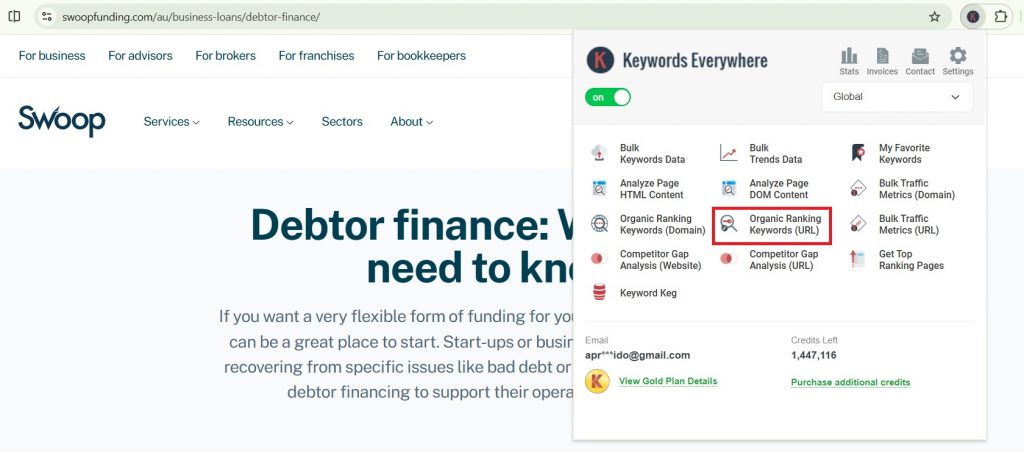
● Organic Ranking Keywords (URL)
Open any page, click Organic Ranking Keywords (URL), and you’ll instantly see the keywords that exact URL ranks for. It’s a quick way to uncover the secondary terms and topic angles driving its traffic.
● Backlink competitor checks (page-level + domain-level)
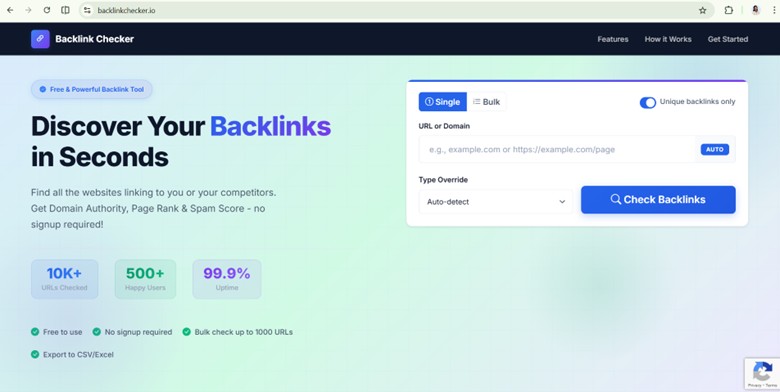
Powered by Keywords Everywhere, BacklinkChecker.io is one of the newer tools in the broader KE ecosystem, and it’s completely free to use even if you’re not a Keywords Everywhere customer. It supports page-level and domain-level competitor backlink checks, which helps with quick benchmarking, competitor audits, and identifying link opportunities without subscribing to a high-cost full backlink platform.
Learn More: Best Free Backlink Checker (Page-Level + Bulk Reports)
● Bulk competitive research (up to 1,000 URLs/domains)
BacklinkChecker.io also supports bulk competitive research, letting you analyze up to 1,000 URLs or domains in one run. This is especially useful when you want to compare multiple competitor pages at once, audit an entire content cluster, or quickly identify which URLs have the strongest backlink support, without running reports one by one.
● Website Traffic Checker
Keywords Everywhere also has a separate and 100% free Website Traffic Checker that lets you estimate monthly organic traffic and total ranking keywords for any website or page. This is useful when you want a quick read on how much search visibility a competitor actually has before digging deeper.
You can use it to check a competitor’s full domain, a specific landing page, a blog post, or any URL you want to benchmark. That makes it helpful for figuring out whether a site is genuinely pulling organic traffic or just looks strong on the surface.
You can use it to:
- Estimate a competitor’s monthly organic traffic
- See how many keywords a domain or page ranks for
- Compare traffic potential across competing pages
- Check whether a competitor’s blog, product page, or landing page is actually performing
- Validate outreach or partnership prospects before investing time
- Spot strong pages worth studying for content ideas
- Benchmark your own pages against similar competitor URLs
This is great for quick qualification. Before you spend time analyzing backlinks, content structure, or keyword gaps, you can first check whether the competitor page or domain has enough organic visibility to be worth studying.
● Subdomain Finder
Our Subdomain Finder helps you uncover the subdomains connected to a root domain, along with traffic, authority, and keyword counts for each one. You can scan a single domain for a quick check, or run domains in bulk if you want to review multiple competitors or client sites at once.
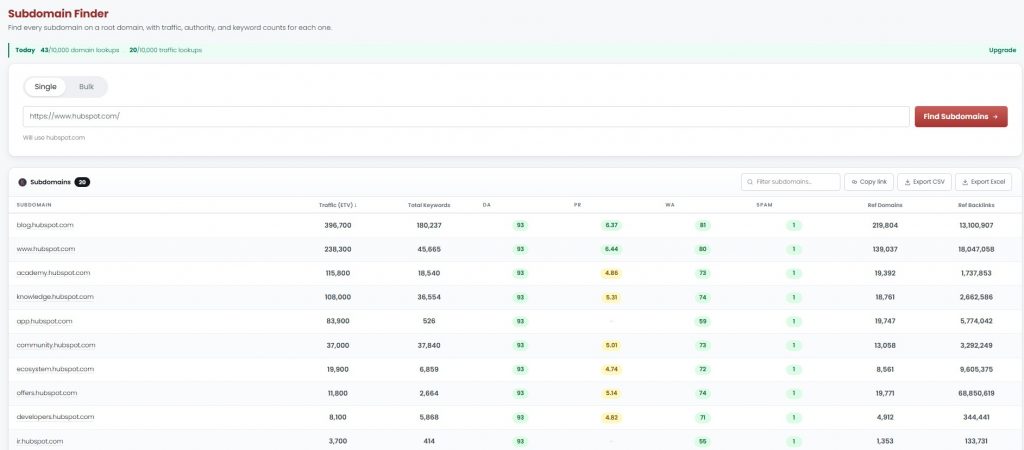
This is useful because bigger competitors often spread their SEO assets across different subdomains. For example, they may have a blog, help center, docs section, academy, marketplace, community, or regional site sitting on separate subdomains. If you only check the main domain, you might miss where a lot of their organic visibility is actually coming from.
You can use it to:
- Find a competitor’s active subdomains
- See which subdomains get organic traffic
- Identify blogs, help centers, docs, or resource hubs driving SEO value
- Compare authority and keyword counts across subdomains
- Spot hidden content sections competitors are using to rank
- Find new content formats or site sections worth studying
- Audit your own subdomains to see which ones are helping or underperforming
This is especially useful for SaaS, ecommerce, marketplaces, publishers, and larger SMB sites with multiple sections. It gives you a clearer view of how a competitor’s SEO footprint is structured, not just what ranks on their main website.
● Listing Checker
Our Listing Checker helps you find business directories that link to your site, plus directories that link to your competitors but not you.
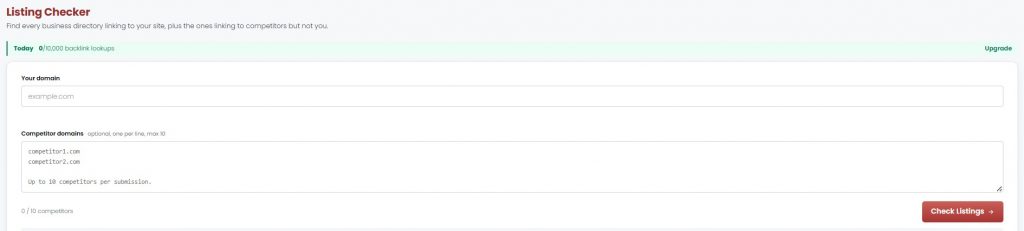
This is especially useful for local SEO because business listings and citations still help build trust, visibility, and consistency across the web. Instead of manually checking directories one by one, you can enter your domain, add up to 10 competitor domains, and see where citation gaps exist.
You can use it to:
- Find directories already linking to your business
- Discover citation gaps from competitor listings
- Spot directories where competitors are listed but you are not
- Prioritize local citation opportunities
- Check directory quality using metrics like DA, spam score, and PR
- Export directory lists for cleanup or outreach
- Strengthen local SEO visibility for service businesses, clinics, restaurants, agencies, and brick-and-mortar SMBs
The main value is that it turns local citation research into a clear checklist. You can see which listings you already have, which ones competitors have, and which directories may be worth pursuing next.
On-page SEO Features
Beyond keyword research and competitive insights, Keywords Everywhere also includes on-page SEO features that help you quickly review what’s happening on a page and make practical optimization improvements without relying on a heavy audit tool.
Here are all the on-page SEO tools you get:
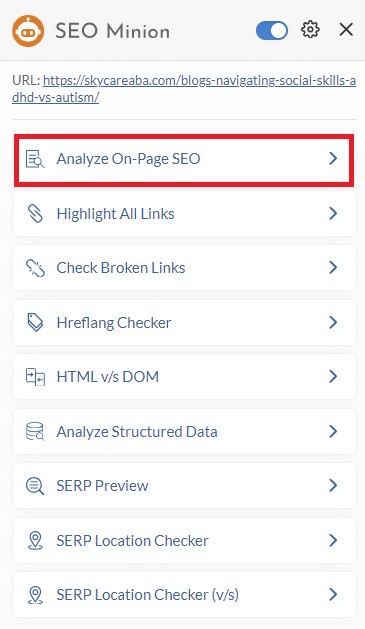
● SEO Minion’s On-Page SEO Analyzer
SEO Minion includes an Analyze On-Page SEO feature that helps you quickly review the key on-page elements of any page without doing a manual check. It’s useful for spotting common issues like missing or poorly optimized titles and headings, weak metadata, and other page-level signals that can affect relevance and click-through rate.
If you’re reviewing a competitor page or auditing your own content before updating it, this is a quick way to confirm whether the on-page fundamentals are in place.
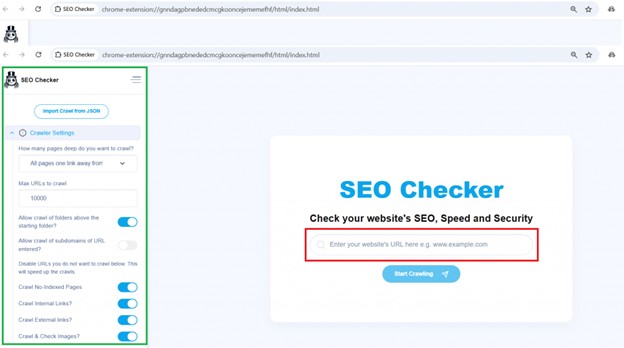
● SEO Checker’s On-page SEO Audit
SEO Checker is another extension in the Keywords Everywhere toolkit that’s useful for quick on-page audits. It checks titles, meta descriptions, and H1s, and also reviews URL structure, thin or duplicate content signals, image meta elements, and even mobile content readiness and other technical SEO elements.
Also Read: How to Use SEO Checker
● SEO Optimizer
Our Free SEO Optimizer turns an audit into a prioritized fix checklist. Instead of only showing what is wrong with a page, it organizes the issues by priority and gives you a clearer path for what to fix first. You can enter any URL, optionally add a focus keyword, and the tool will build a checklist of optimization tasks.
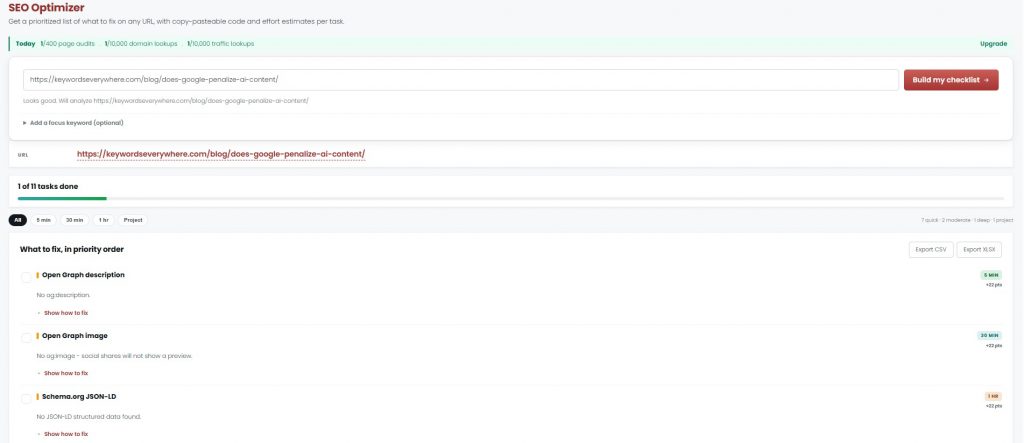
Each task includes an estimated effort level, so you can quickly separate quick wins from deeper fixes. You can also click “Show how to fix” to get more specific guidance for each issue.
This is useful for on-page SEO because it helps with practical improvements like missing Open Graph tags, missing schema, metadata issues, content gaps, and other page-level fixes that can affect how your page appears in search and social previews.
This kind of tool being free is honestly rare. Prioritized fix lists, effort estimates, and copy-paste guidance are usually locked inside heavier paid platforms. Here, you can build a clear checklist, work through the quick wins, and fix the highest-priority issues without getting buried in a bloated audit report.
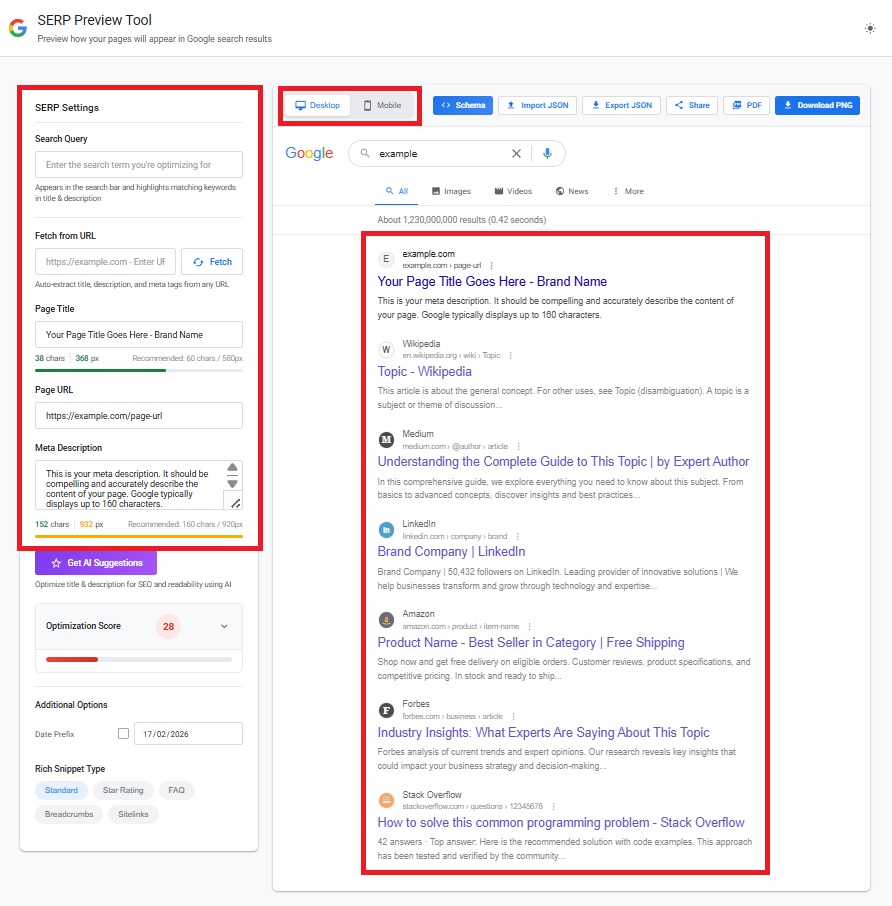
● SERP Preview Tool
SERPPreviewTool.com fits nicely under Keywords Everywhere on-page tools. It’s free and doesn’t require an account, and it lets you simulate your SERP snippet on desktop and mobile so you can avoid truncation and improve CTR. Beyond the basics, it can pull metadata from a live URL, highlight keywords, offer AI improvements, and generate schema previews with export and sharing features.
Read More: Best Free Google SERP Preview Tool: Optimize Titles & Descriptions

● Keyword Clustering Tool
If you’re building clusters at scale, keywordclustering.net is built for that. Powered by Keywords Everywhere, it groups keywords by intent while attaching KE metrics. It also nudges the work into on-page territory by recommending page types and generating title and meta description drafts, which helps keep targeting clean and reduces cannibalization.
Also Read: Best Keyword Clustering Tool in 2026 (Low-Cost Option)
● Other Free On-Page SEO Tools
Keywords Everywhere also offers a wide set of free on-page SEO tools that help with the regular optimization tasks you usually need before publishing or updating a page. These are useful for checking metadata, improving content, generating schema, fixing headings, reviewing redirects, and polishing how your pages appear in search and social previews.
Here are some of the free on-page SEO tools you can use:
- Redirect Checker – traces the full redirect chain on any URL and helps catch loops, broken links, and cloaking issues.
- Schema Markup Generator – generates valid JSON-LD schema markup for 15 schema types, including Article, Product, FAQ, Event, Local Business, Recipe, and more.
- Schema Markup Validator – validates your schema markup after generation, so you can catch missing fields or incomplete JSON-LD before adding it to your page.
- Description Generator – creates SEO meta descriptions in six different styles, optimized for desktop and mobile search results.
- Keyword Density Checker – measures phrase density on any page or pasted content so you can see if you are overusing or underusing your target keywords.
- Alt Text Generator – generates accessible, SEO-friendly alt text for images on a page or images you upload.
- SEO Content Checker – audits any page or draft against a target keyword and shows what to add, edit, or remove.
- H1 Checker – checks H1 headings on one URL or up to 200 URLs at once, with AI rewrite suggestions for fixing structural issues.
- Open Graph Generator – builds Open Graph and Twitter Card tags with live previews for Facebook, X, LinkedIn, Discord, Slack, and WhatsApp.
- FAQ Generator – generates FAQs using real People Also Ask questions and creates valid FAQ schema for any keyword, URL, or content.
- Title Length Checker – checks whether your title fits Google’s pixel budget on desktop and mobile, with AI rewrite suggestions.
- Title Tag Generator – generates SEO meta titles in six different styles, optimized for Google’s desktop and mobile result snippets.
These free tools make on-page SEO feel much more doable. Instead of running a heavy audit for every page, you can fix the parts that matter one by one: titles, descriptions, headings, schema, redirects, content quality, and social previews. And the best part is it’s all yours for free!
Backlinks & Authority Tools
Keywords Everywhere also gives you a set of free backlink and authority tools for checking link strength, spotting risky domains, and finding link-building gaps. These are useful when you want to understand why competing pages may be ranking better, especially if they have stronger authority or a deeper backlink profile.
The main tools include:
- Backlinks Checker – shows backlinks pointing to any domain or URL, including anchor text and source domain authority
- Backlink Counter – Count how many backlinks and referring domains any website has at a glance, for one site or a bulk list.
- Domain Authority Checker – checks Moz Domain Authority, spam score, and linking domains for any domain
- Website Authority Checker – gives a single Website Authority score for any domain you enter
- Spam Score Checker – checks Moz Spam Score so you can judge whether a backlink source may be risky
- Backlink Gap Analyzer – finds backlinks pointing to competitors but not to you, which can help with outreach and link-building
- Inbound Link Checker – finds every inbound link (backlink) pointing at any domain or URL, with anchor text and source domain authority.
This is helpful because backlinks are still a major part of competitive SEO. If a competitor page is ranking with a strong link profile, you can quickly see whether the gap is mostly content-related, authority-related, or both. For SMBs and DIY SEOs, these tools make backlink research more approachable without needing to jump straight into an expensive link analysis platform.
Technical & SEO Audit Features
In addition to on-page and competitive features, Keywords Everywhere includes technical SEO checks designed for fast site diagnostics. These help you surface common issues that can impact crawling, performance, and overall site quality.
The following are the core technical SEO checks available:
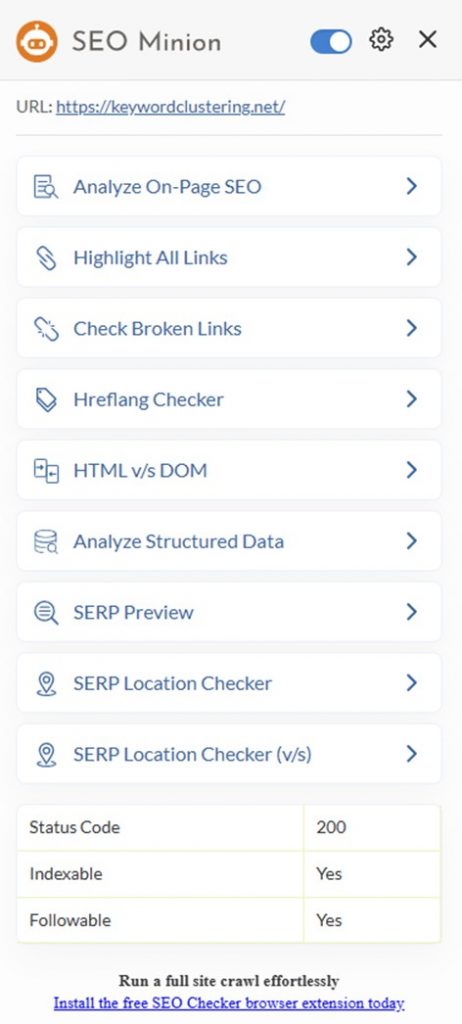
Technical SEO Checks in SEO Minion
SEO Minion gets a lot of love as an all-in-one browser helper for technical SEO. It’s very straightforward and time-saving for routine checks like broken links, hreflang validation, HTML vs DOM, and structured data, without the overhead of a big audit platform.
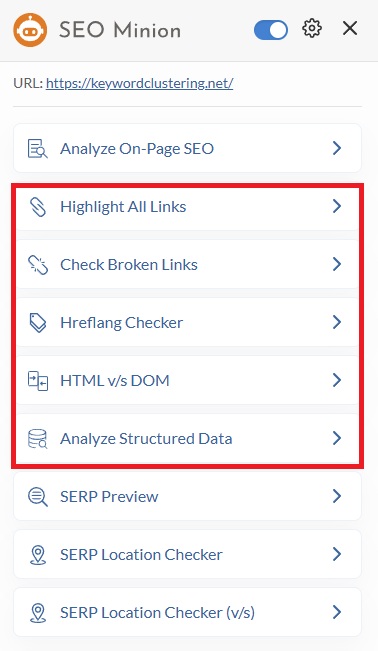
● Highlight All Links (internal & external)
This feature visually highlights all links on a page and separates internal vs external links, making it easier to spot linking patterns, nofollow usage, and potential link issues at a glance.
● Check Broken Links
SEO Minion can scan a page for broken links so you can catch 404s and dead outbound/internal links that hurt UX and waste crawl budget.
● Check Hreflang Tag Validity
If you run multilingual or multi-region sites, this helps validate hreflang tags and flag common implementation issues that can cause wrong-language or wrong-country indexing.
● Check HTML vs DOM
This compares what’s in the raw HTML versus what’s rendered in the DOM, which is useful for diagnosing JavaScript rendering issues where important content or links only appear after scripts run.
● Analyze Structured Data
This checks structured data on a page and helps you verify whether schema markup is present and valid, which supports eligibility for rich results and reduces markup errors.
Technical SEO Audit via SEO Checker
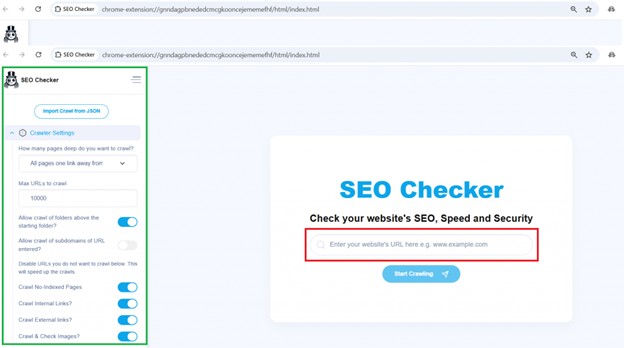
SEO Checker is another tool in the Keywords Everywhere toolkit that helps with technical SEO maintenance. It highlights common crawl, index, and site performance issues, making it easier to troubleshoot issues before they start affecting rankings.
● Speed Audit
SEO Checker also helps you pinpoint what’s driving slow load times by calling out resource-level issues, including heavy scripts, large images, and inefficient CSS. It also reviews whether your assets are minified properly and flags areas where trimming file size could improve speed.
● Security Audit
The tool verifies whether a site is running on a secure connection and flags issues that can weaken trust signals and basic security hygiene.
It also scans for common security-related misconfigurations, including missing protections for content sniffing, iframe restrictions, and clickjacking prevention. These checks help you spot gaps that can expose a site to risk and potentially affect overall site quality.
● Crawl Controls
For more control, SEO Checker lets you fine-tune its crawler settings. You can choose how many levels deep to crawl, cap the total URLs scanned, and filter out pages you do not want included, which helps keep audits faster and more targeted.
Also Read: Technical SEO Explained: A Beginner’s Guide to Crawl and Index
Technical and General Checks via SEO Analyzer
Our SEO Analyzer lets you enter any URL and score it across 49 SEO checks, so you can quickly see what may be hurting rankings. Instead of looking at one issue at a time, it gives you a broader audit view across content, technical SEO, performance, mobile usability, structured data, and off-page authority.
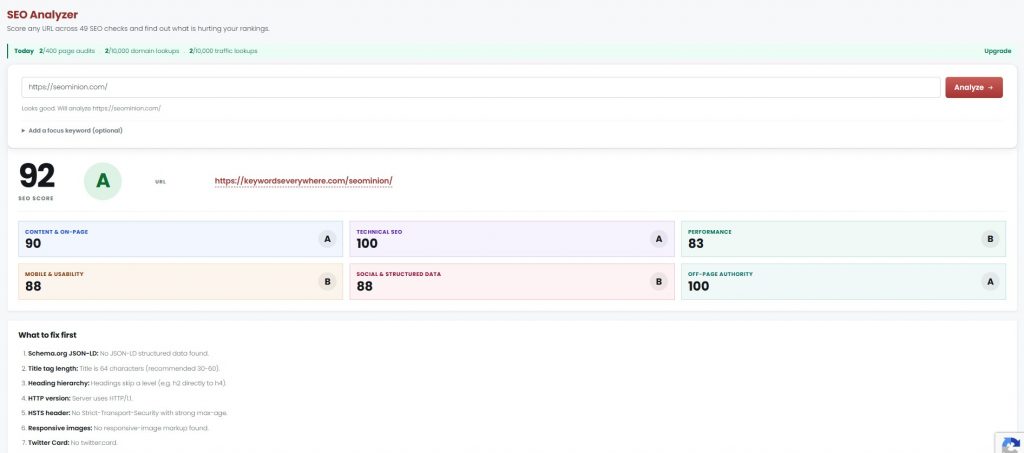
The report gives the page an overall SEO score, then breaks it down into key categories like:
- Content & On-Page – checks page-level elements like title tags, headings, content structure, and keyword relevance
- Technical SEO – reviews crawl/index-related factors and technical setup
- Performance – flags speed and loading issues that may affect user experience
- Mobile & Usability – checks whether the page is mobile-friendly and easy to use
- Social & Structured Data – reviews schema, Open Graph, Twitter Card, and other markup signals
- Off-Page Authority – gives a quick authority-side view of the URL
Instead of staring at a long audit report and wondering where to start, you get a “What to fix first” section highlighting a priority list of issues like missing structured data, long title tags, heading hierarchy problems, HTTP version issues, missing HSTS headers, responsive image gaps, or missing social tags.
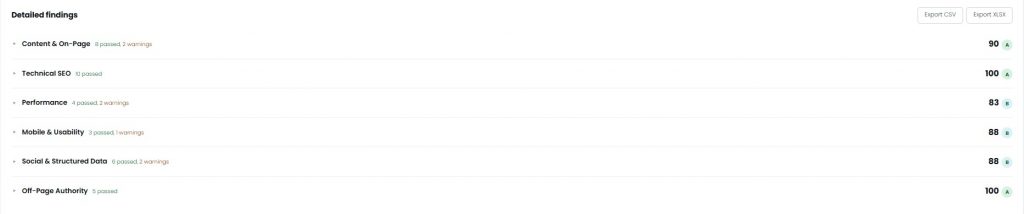
The Detailed findings section lets you click into each audit category to see the full breakdown behind the score. Each category expands into individual checks, showing what passed, what triggered warnings, what the tool found on the page, and what needs to be fixed.
This makes the audit easier to act on because you’re not just looking at a single score. You can open the weaker sections, review the exact issues, and work through the fixes one by one.
For smaller teams, this gives you a simple way to audit pages without overcomplicating the process. You can use the free report to spot content, technical, performance, mobile, structured data, and authority issues, then fix the highest-priority issues first without needing a heavy enterprise SEO platform.
● Robots.txt Tester & Generator
Keywords Everywhere also has two free tools for managing crawler access. The Robots.txt Tester checks whether specific URLs are blocked for Googlebot, GPTBot, and other crawlers.
The Robots.txt Generator helps you build crawl rules, add your sitemap, and quickly block AI training bots without writing everything by hand.
Together, they make it easy to set your crawl rules and double-check them before going live.
● llms.txt Generator
For AI visibility, Keywords Everywhere also has a free llms.txt Generator. It helps you build a properly formatted llms.txt file that points AI assistants toward your site’s key pages, then download it ready to add to your site root.
Content & AI Writing Tools
We also have a set of free content and AI writing tools that help with the writing side of SEO. These are useful when you need to brainstorm ideas, outline articles, clean up drafts, or improve readability without relying on a separate AI writing suite.
The main tools include:
AI Writing & Drafting Tools
- AI Text Generator – generates ready-to-paste text in 12 formats, including paragraphs, tweets, SMS, meta descriptions, ad copy, and more
- Paragraph Generator – writes single paragraphs for blog intros, product descriptions, conclusions, and other structures
- AI Email Generator– drafts new emails, replies, cold outreach messages, and follow-ups with subject lines included
- Conclusion Generator – generates conclusions that connect back to your draft, available in eight styles
- Lorem Ipsum Generator – creates placeholder words, sentences, paragraphs, list items, or ready-made HTML
Rewriting & Editing Tools
- Sentence Rewriter – rewrites any sentence in 15 different tones to match your target audience and writing style
- Paraphrasing Tool – rewords text in different modes, from fluency to academic, with highlighted changes and a readability score
- Paragraph Rewriter – rewrites paragraphs for clarity, tone, or length, with changes highlighted for easier review
- Text Rewriter – rewrites emails, posts, documents, and general copy in multiple styles
- Article Rewriter – helps refresh or rewrite existing articles section by section while keeping the core meaning intact
- Sentence Shortener – tightens long sentences and wordy paragraphs without losing the original meaning
- Sentence Expander – adds useful detail to thin sentences or paragraphs without turning them into fluff
- Pre-Publish Checker – gives your draft a final check before it goes live, covering content stats, readability, title length, AI proofreading, and meta descriptions in one pass
Grammar, Proofreading & Readability Tools
- AI Grammar Checker – checks text, URLs, or PDFs for grammar, spelling, punctuation, clarity, style, and tone
- Proofreader – checks grammar, spelling, punctuation, clarity, and style issues in one pass
- Spell Checker – catches typos and misspellings and lets you copy the corrected version quickly
- Punctuation Checker – fixes commas, apostrophes, quotation marks, hyphens, and end punctuation
- Readability Checker – scores text, URLs, or PDFs across eight readability formulas and flags confusing sentences
Content Ideation & Planning Tools
- AI Idea Generator – generates content ideas with monthly search volume and 12-month trend data
- Content Idea Generator – generates 12 content ideas across the marketing funnel for blogs, YouTube, LinkedIn, and other channels
- Outline Generator – creates complete content outlines in nine formats, with search volume and competitor headings for context
- Hook Generator – creates hooks for TikTok, Reels, YouTube, LinkedIn, X, email, blogs, and ads
- Headline Generator – generates headline ideas for a topic and scores them based on strong headline elements
SEO Copy & Formatting Helpers
- Word Counter – counts words, characters, sentences, paragraphs, and reading time, with live keyword-density data
- Character Counter – counts characters with and without spaces and checks text against limits for X, Instagram, meta descriptions, and SMS
- Title Case Converter– formats headlines in AP title case, Chicago title case, or sentence case
- Case Converter – switches text between uppercase, lowercase, title case, sentence case, capitalized case, and more
- Reading Time Calculator – estimates reading time and speaking time based on text length and speed
- Words to Pages Converter – turns a word count into a page estimate based on font, size, and spacing presets
Research, Citation & Comparison Tools
- AI Summarizer – summarizes text, web pages, PDFs, or YouTube videos into six different formats in one click
- Citation Generator – creates APA, MLA, Chicago, Harvard, IEEE, and Vancouver citations, with URL auto-fill support
- Text Similarity Checker – compares two texts and highlights overlapping passages with a similarity percentage
- Text Compare – compares two pieces of text side by side and highlights exactly what changed
Specialized Text Utility Tools
- Fancy Text Generator – turns plain text into bold, italic, cursive, and other copy-paste Unicode styles
- Sentence Counter – counts sentences live and shows sentence length so overlong lines are easier to spot
- Syllable Counter – counts syllables live, with per-line counts for checking haiku, lyrics, poetry meter, or any content where rhythm and word sound matter.
This section is useful because content creation is where a lot of SEO work slows down. You may already know the keyword you want to target, but still need help turning it into a clear angle, outline, draft, hook, or conclusion. These tools give you a faster way to move from research to writing while still keeping SEO context close to the workflow.
Social Media & Platform Content Tools
Keywords Everywhere also includes free social media and platform content tools that help you create captions, hashtags, bios, video metadata, and quick posts faster. These are useful when you need platform-ready content without starting from a blank page or switching between multiple tools.
The main tools include:
- Instagram Bio Generator – generates a 150-character Instagram bio that hooks followers, states your value, and drives clicks to your link
- Instagram Name Generator – generates Instagram username and display-name pairs that match your niche, vibe, and brand, with a memorability score
- Instagram Caption Generator – generates Instagram captions tuned to your goal, whether that’s engagement, sales, storytelling, education, or humor
- YouTube Tag Generator – turns a video topic into relevant YouTube tags and keywords, ready to paste into your video
- Social Media Post Generator – generates ready-to-publish posts for Instagram, Facebook, LinkedIn, and X, complete with hashtags
- Hashtag Generator – gives you a smart mix of broad, niche, and specific hashtags for any platform
- Tweet Generator – turns an idea into three ready-to-post tweets under 280 characters, in the tone you pick
- Instagram Hashtag Generator – generates an Instagram-tuned hashtag ladder with broad, niche, and community tags
- YouTube Title Generator – creates clickable, honest video titles under 100 characters, each with a strength score
- TikTok Hashtag Generator – generates searchable TikTok hashtags matched to your video, without relying on discovery-spam tags
- YouTube Description Generator – creates video descriptions with a hook up top, keyword-rich body, link placeholders, and hashtags
- LinkedIn Headline Generator – turns your role and results into scored LinkedIn headlines under the 220-character limit
- YouTube Thumbnail Downloader – lets you download any video’s thumbnail in every size YouTube stores, up to full 1280×720 HD
Together, these tools help simplify the content work that usually slows social publishing down. You can create bios, captions, hashtags, posts, titles, descriptions, and profile copy faster while keeping each piece better matched to the platform it’s meant for.
Marketing & PPC Tools
Keywords Everywhere also includes free marketing and PPC tools that help you calculate campaign performance, ad costs, ecommerce fees, revenue estimates, and tracking links. These are useful when you need quick numbers for campaign planning, reporting, pricing, testing, or paid media decisions without building a spreadsheet from scratch.
The main tools include:
Campaign Performance Calculators
- Marketing Calculators – gives you a free suite of marketing calculators for ROI, ROAS, CPM, CPC, CTR, conversion rate, margin, LTV, CAC, and more
- ROI Calculator – lets you enter what you invested and earned to calculate return on investment and net profit
- ROAS Calculator – calculates return on ad spend as a ratio and percentage based on ad revenue and ad spend
- CPM Calculator – works out cost per 1,000 impressions from your campaign cost and total impressions
- CPC Calculator – calculates your average cost per click based on total cost and clicks
- CTR Calculator – calculates click-through rate as a percentage using clicks and impressions
- Conversion Rate Calculator – calculates your conversion rate based on conversions and visitors
- CPA Calculator – calculates cost per acquisition from ad spend and conversions, plus profit per conversion
Profitability, Pricing & Customer Value Tools
- Margin Calculator – shows profit, profit margin, and markup based on cost and selling price
- Markup Calculator – turns cost and markup into a selling price and profit, with the equivalent margin shown
- LTV Calculator – estimates customer lifetime value using average order value, purchase frequency, and customer lifespan
- CAC Calculator – calculates customer acquisition cost from total spend and new customers, with the LTV ratio included
- Churn Rate Calculator – calculates churn rate, retention rate, annualized churn, and estimated revenue lost
- Discount Calculator – calculates sale price and savings based on the original price and percentage discount
A/B Testing & Experiment Planning Tools
- A/B Test Significance Calculator – checks whether an A/B test result is statistically significant based on the confidence level
- Sample Size Calculator – estimates how many visitors your A/B test needs to detect a lift at your chosen confidence level
Ecommerce & Payment Fee Calculators
- PayPal Fee Calculator – estimates PayPal fees and your actual take-home amount, with editable rates for different countries
- eBay Fee Calculator – breaks down eBay final value fees, per-order fees, and your expected net payout
- Etsy Fee Calculator – calculates Etsy listing fees, transaction fees, processing fees, Offsite Ads fees, and take-home earnings
- Amazon FBA Calculator – estimates Amazon referral fees, fulfillment fees, profit, margin, and ROI per unit
- Stripe Fee Calculator – calculates Stripe processing fees and net payout, including international surcharges
Creator & Ad Revenue Calculators
- YouTube Money Calculator – estimates monthly and yearly YouTube ad earnings based on views and RPM range
- AdSense Revenue Calculator – estimates website ad earnings based on pageviews and page RPM
- Engagement Rate Calculator – calculates engagement rate using likes, comments, shares, followers, or reach
Tracking & Business Utility Tools
- UTM Builder – adds UTM tags to any URL and generates a clean campaign tracking link for analytics
- Email Signature Generator – builds a professional HTML email signature you can copy into Gmail, Outlook, or Apple Mail
Together, these tools make campaign math, ecommerce pricing, and marketing setup much easier to manage. You can calculate ad performance, estimate profitability, check platform fees, measure test results, and build trackable links faster, which is especially useful for small teams managing PPC, ecommerce, content, and analytics at the same time.
Image Tools
Keywords Everywhere also includes free image tools that help with resizing, compressing, converting, optimizing, and preparing visuals for websites, social posts, branding, and SEO. These are useful when you need lighter images, cleaner formats, favicons, or quick visual assets without opening a separate design or editing app.
The main tools include:
- Image Resizer – resizes JPG, PNG, and WebP images to exact pixel dimensions or by percentage, right in your browser
- Image Compressor – shrinks JPG, PNG, and WebP files with a quality slider and instant before/after file sizes
- Favicon Generator – turns any image into a multi-size favicon.ico, PNG set, and HTML snippet directly in your browser
- WebP Converter – converts JPG and PNG images to WebP, or converts WebP back to PNG or JPG
- PNG to JPG Converter – converts PNG to JPG or JPG to PNG, with transparency flattened to white and a quality slider
- SVG Converter – turns SVG files into sharp PNG, JPG, or WebP images at any scale
- Color Palette Generator – builds harmony palettes from any color or pulls the dominant colors from an image
- Image Optimizer– resizes, compresses, and strips metadata from images in one pass, all in your browser
Together, these tools make basic image cleanup much easier. You can reduce file sizes, switch formats, prepare favicons, create color palettes, and optimize visuals before uploading them to your site, helping pages load faster and look more polished without needing a full image-editing suite.
Branding & Naming Tools
Keywords Everywhere also includes free branding and naming tools that help you come up with names, handles, slogans, titles, and brand ideas faster. These are useful when you need a memorable name for a business, product, app, blog, podcast, restaurant, or social profile without starting from scratch.
The main tools include:
- Username Generator – turns a keyword, name, or interest into catchy username and handle ideas for any platform, ready to copy
- Business Name Generator– generates catchy, brandable business name ideas from a keyword and your industry, with a short note on why each one works
- Slogan Generator – turns your brand and what you do into catchy slogans and taglines you can copy in one click
- Book Title Generator – turns your premise and genre into compelling book title ideas, with optional subtitles
- Company Name Generator – creates professional, brandable company name ideas from a keyword and your field
- Brand Name Generator – generates distinctive brand name ideas from a keyword or concept, including coined words
- Domain Name Generator – turns a keyword into short, brandable domain name ideas with TLD suggestions
- Podcast Name Generator – turns your topic and vibe into catchy, easy-to-say podcast name ideas
- Blog Name Generator – turns your niche into memorable, brandable blog name ideas
- Acronym Generator – turns any phrase into memorable acronyms and initialisms, with each expansion spelled out
- YouTube Name Generator – turns your niche into memorable YouTube channel name ideas, with a .com check built in
- Restaurant Name Generator – turns your cuisine and concept into memorable restaurant name ideas, with a .com check
- TikTok Username Generator – turns a keyword or vibe into catchy TikTok handle ideas that are easy to say in a video
- Product Name Generator – turns your product description into brandable name ideas, with a .com availability check built in
- App Name Generator – generates short, brandable, app-store-friendly name ideas from a one-line description of your app
Together, these tools make the naming process much easier to manage. You can brainstorm brand names, usernames, domains, slogans, product names, and content titles faster, then shortlist the options that feel memorable, relevant, and easy to use across platforms.
Other Features
Keywords Everywhere also includes additional SEO utilities outside of keyword research and primary SEO tasks. These smaller tools can still be useful for day-to-day tasks and help reduce the need for extra add-ons in your workflow.
● SEO Minion’s SERP Preview
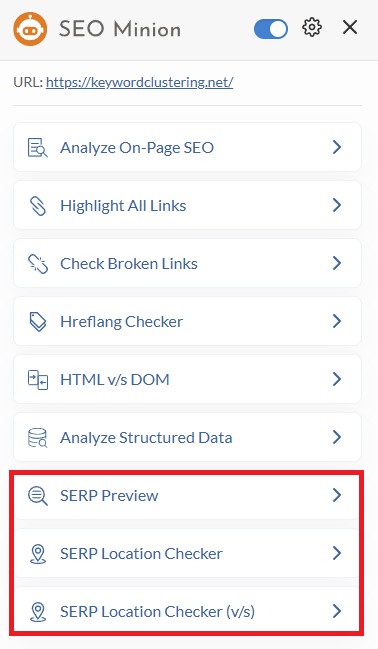
SEO Minion’s SERP preview tool is a quick way to sanity-check how your title and meta description will look in Google before you publish. It helps you catch common issues like truncation, awkward phrasing, or titles that bury the main keyword too late. It’s also useful when you’re testing small variations for CTR, since you can see how different wording, punctuation, or length changes the overall “feel” of the snippet at a glance.
● SEO Minion’s Google Search Location Simulator
Its Google Search Location Simulator gives you a practical way to test location-based SERP variation. By simulating searches from different countries or areas, you can check whether Google is reshuffling results based on geography, verify which pages are surfacing in each market, and see how consistent your search presence really is across the locations you care about.
● Keyword Everywhere’s Fan-out Query Tool
In GEO workflows, fan-out queries help you expand beyond a single keyword by identifying the natural “next questions” users ask. Covering them can make pages more useful, more comprehensive, and more citation-friendly.
Also Read: How to Find and Optimize for Fan-Out Queries (AI SEO)
● AI Prompt Templates
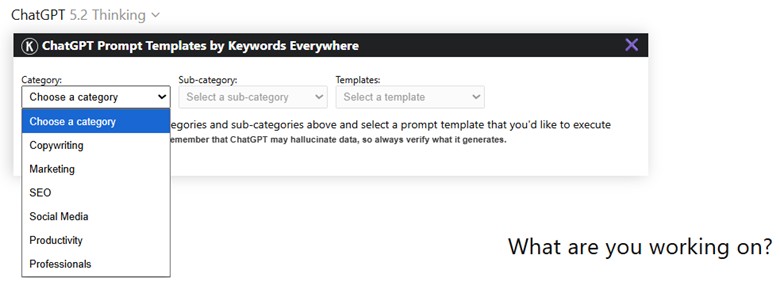
Keywords Everywhere also includes a lightweight AI Prompt Templates panel that lets you run pre-built ChatGPT prompts without writing them from scratch. You pick a Category, narrow it down with a Sub-category, then choose a Template, and it populates a structured prompt you can execute right away (the dropdown-style workflow makes it fast to repeat the same tasks across many pages).
● Country or Region Selector
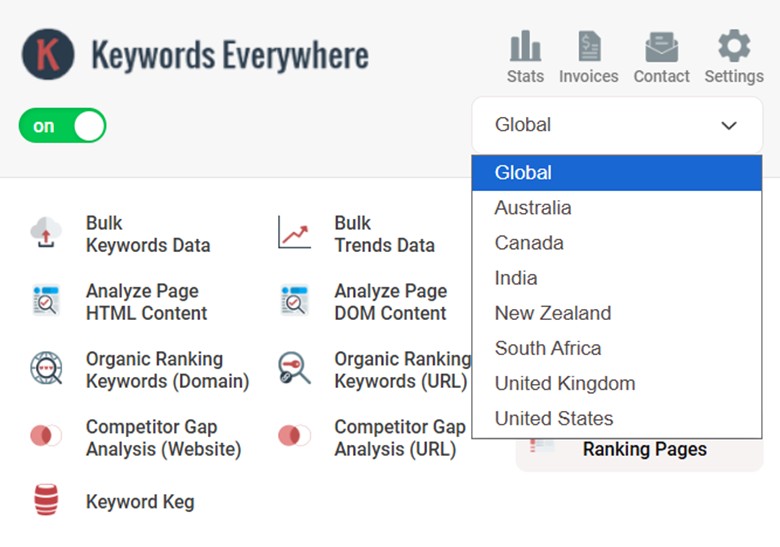
Keywords Everywhere also includes a country or region selector. This lets you view keyword data at a worldwide level or narrow it down to a specific country. It’s a helpful feature when you want cleaner, more relevant keyword metrics for the market you’re targeting.
For example, a keyword may show healthy search volume globally, but once you switch to a specific region, the demand may be much lower or much stronger. That makes this dropdown useful for localized content planning, geo-targeted SEO, and evaluating whether a keyword deserves its own page in a given market.
● General Utility Tools
Keywords Everywhere also includes a few practical utility tools for quick business, branding, and offline-to-online tasks.
- QR Code Generator– lets you create static QR codes for URLs, Wi-Fi details, contact information, or plain text. You can customize the color, add a logo, and download the final code as PNG or SVG.
- Barcode Generator– helps you create scannable barcodes in formats like Code 128, EAN-13, UPC-A, Code 39, and ITF, then download them as PNG or SVG.
- Color Converter– lets you convert colors between HEX, RGB, and HSL instantly, with copy-ready values for design, branding, or website work.
- Invoice Generator– helps you build a clean, printable invoice with live totals and export it as a PDF, with no watermark or signup required.
Takeaway
Keywords Everywhere goes way beyond being a keyword overlay. Once you factor in the competitive features, on-page tools, and technical checks, it becomes a well-rounded SEO toolkit.
The ecosystem is what makes it click, since tools like SEO Minion, SEO Checker, Keyword Planner, BacklinkChecker.io, SERPPreviewTool.com, and KeywordClustering.net cover a lot of the gaps you’d normally need separate subscriptions for. If you want a lean setup that still supports real SEO work from research to execution, this is a solid stack to build on.