
How to Use Keywords Everywhere
A browser extension that drops keyword data, search volume, competition, trends and a lot more, right into the sites you already use. Here is everything it does and how to use it.
What Keywords Everywhere does
Most people meet it as the search volume under the Google search box. That is the start of it, not the whole story.
Where it works
- Google Search, Search Console, Analytics, Trends and Keyword Planner
- Bing, YouTube, Amazon, eBay and Etsy
- Pinterest, Instagram and X (Twitter)
- Prompt templates inside ChatGPT, Claude, Gemini and DeepSeek
What you get
- Search volume, CPC and competition
- 12-month and historical trends
- SEO difficulty and Moz link metrics
- Related, PASF and long-tail keyword ideas
- Organic traffic and ranking keywords for any URL
- AI SEO reports, gap analysis and a REST API
The extension is free to install, and several features are free. Search volume and the other metrics are a paid feature that uses credits, so you only pay for the lookups you make. Your keywords are sent to our server only to fetch their metrics, and are never stored. It works on Chrome, Firefox and Edge.
Set it up in three steps
Setup takes a couple of minutes. After that, the data appears on its own every time you search.
Install the extension
Add Keywords Everywhere to Chrome, Firefox or Edge from its official web store. It takes one click.
Get your free API key
Sign up for a free API key and paste it into the extension. The free features work straight away.
Purchase a subscription for paid metrics
To unlock search volume and the rest, choose a plan and add credits. One credit is used per keyword.
New to the tool? Our Start Here guide walks through the install in more detail.
Everything you get on a Google search
With the extension on, a single Google search turns into a full research session. Here is what appears around the results.

Search volume, CPC and competition
Under the search box you get the keyword's average monthly search volume, its cost per click and the advertiser competition, straight from Google Keyword Planner, the real data Google gives advertisers.
Trend chart and historical volume
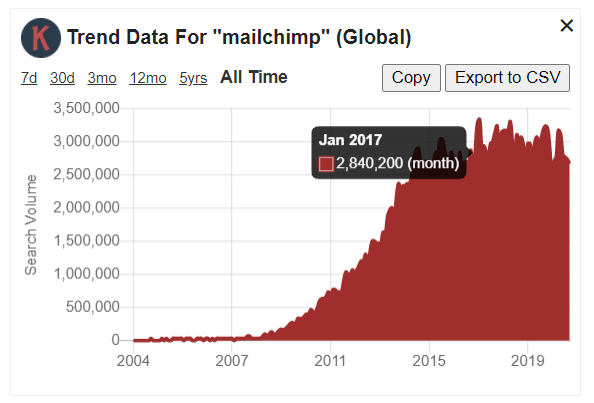
A chart on the right shows how interest in the keyword has moved, with the estimated monthly volume going back to 2004, the demand history Google Trends never puts a number on.
SEO Difficulty
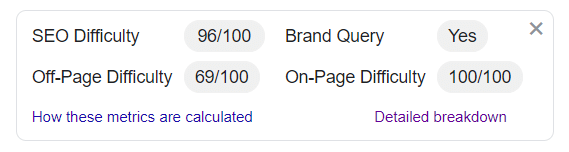
A set of SEO Difficulty metrics scores how hard the keyword is to rank for, splitting on-page from off-page difficulty and flagging brand queries, so you can tell at a glance whether a keyword is worth chasing.
Related, PASF and long-tail keyword ideas
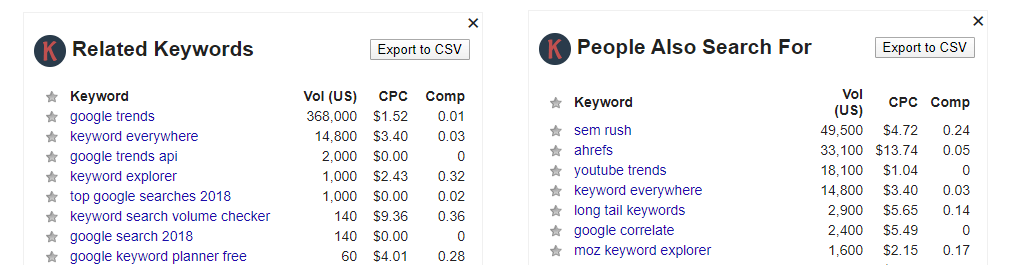
Three widgets fill the page with keyword ideas straight from Google: Related keywords, People Also Search For, and thousands of long-tail keywords from autocomplete, each with its own search volume.
Organic traffic and ranking keywords
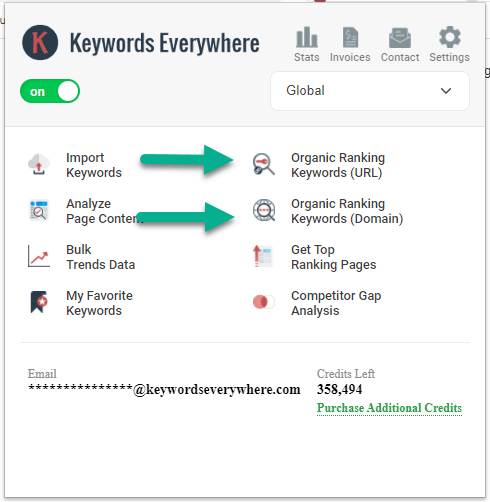
For every result on the page you see the estimated monthly traffic it gets and how many keywords it ranks for, up to the top 10,000 per URL. It is the fastest way to size up a competitor.
Moz link metrics and backlinks
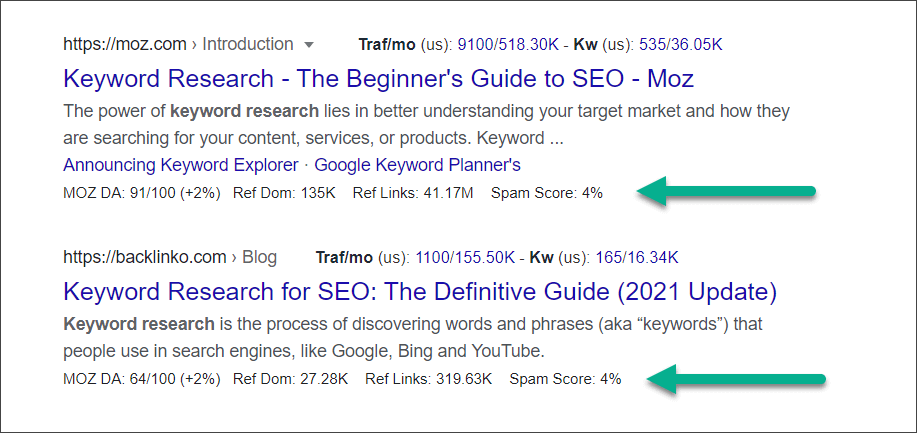
Under each result KE adds Moz's Domain Authority, referring domains and spam score, and a Show Backlinks link opens the top backlinks for that page.
See link metrics and the backlink checker
AI-written SEO reports
Run an AI SEO report for any search to get the user intent, the content type to create, keyword clusters, title ideas and a rankability check, work that would otherwise take you hours.
AI Overview analysis
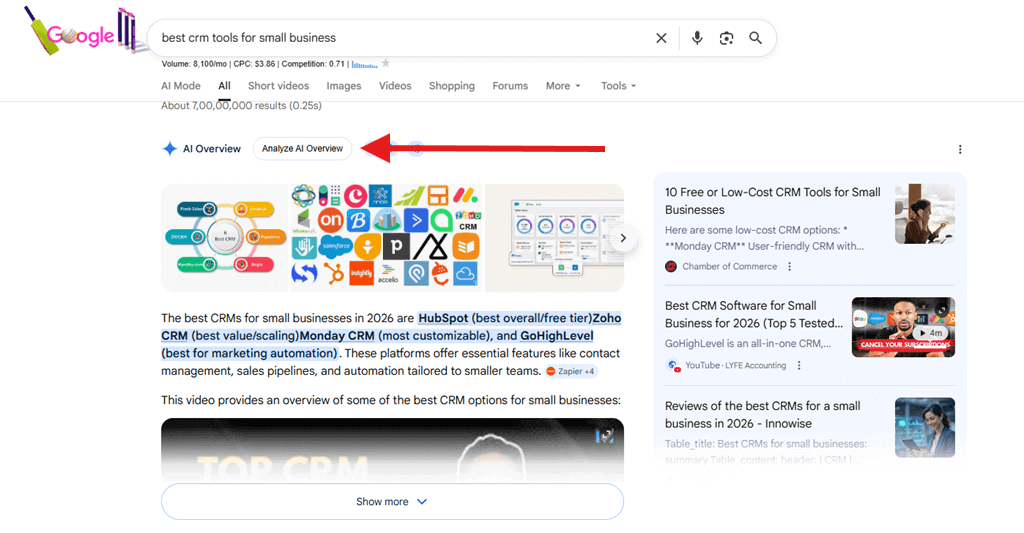
When Google shows an AI Overview, KE breaks down the sources it cites and the metrics behind them, so you can see who is being quoted and work out how to be cited too.
It works on 15+ sites, not just Google
The same research follows you across the web. Each site shows the metrics that make sense there.
Google Search Console
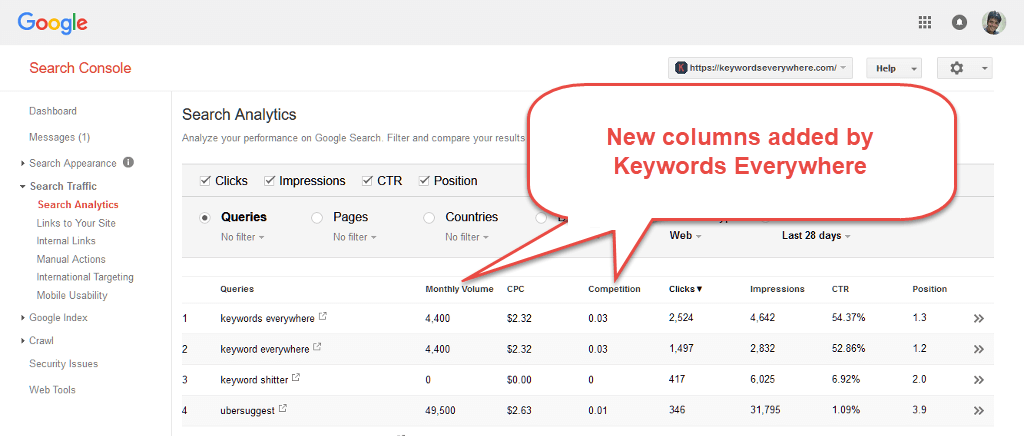
Adds volume, CPC and competition columns to your Queries report, plus a Visualize view that charts them.

Google Analytics
Brings the same volume columns into the GA4 Search Console report, so your own queries get real demand numbers.
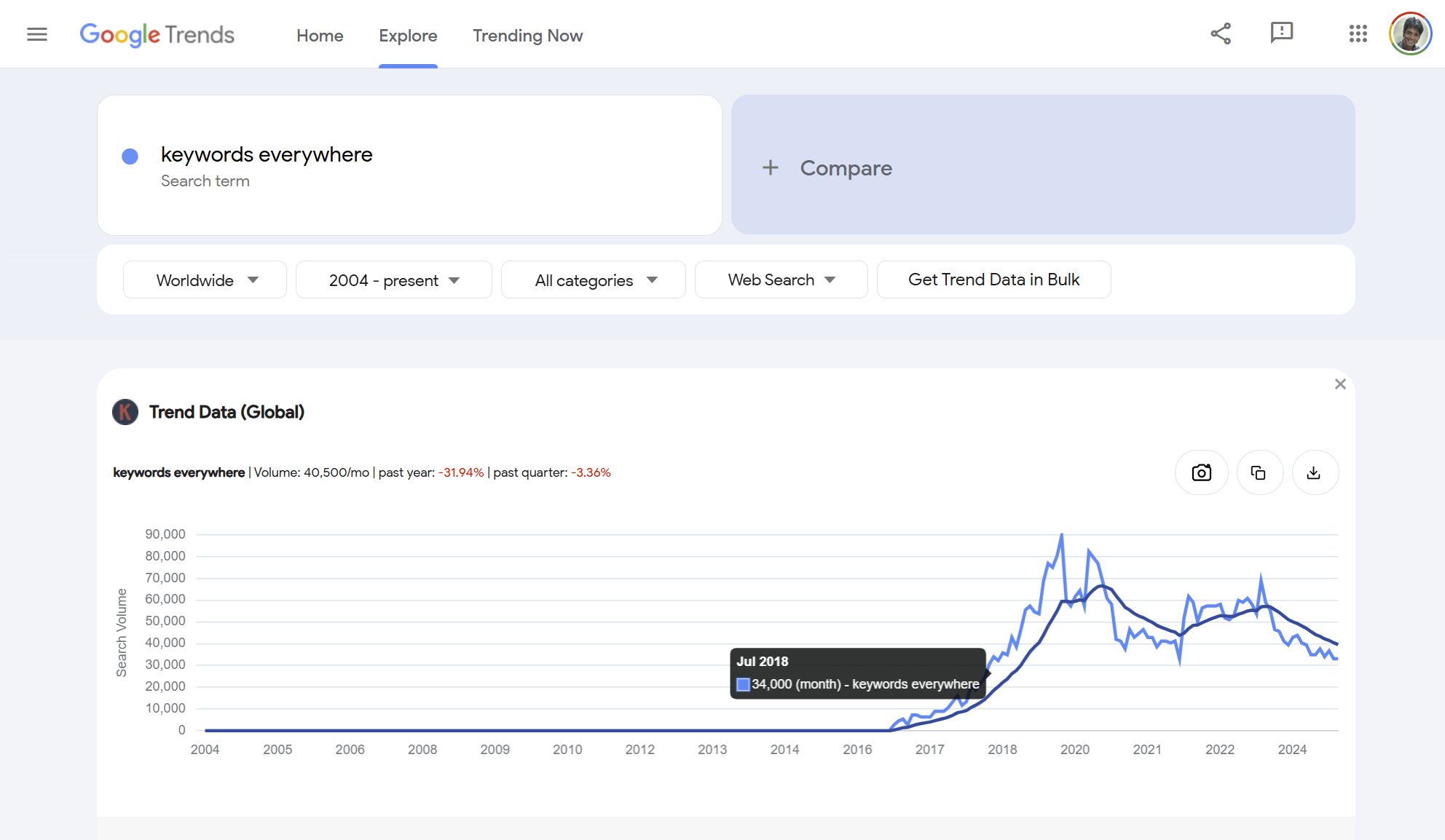
Google Trends
Overlays the estimated search volume on the Trends chart and shows the volume for every related query.
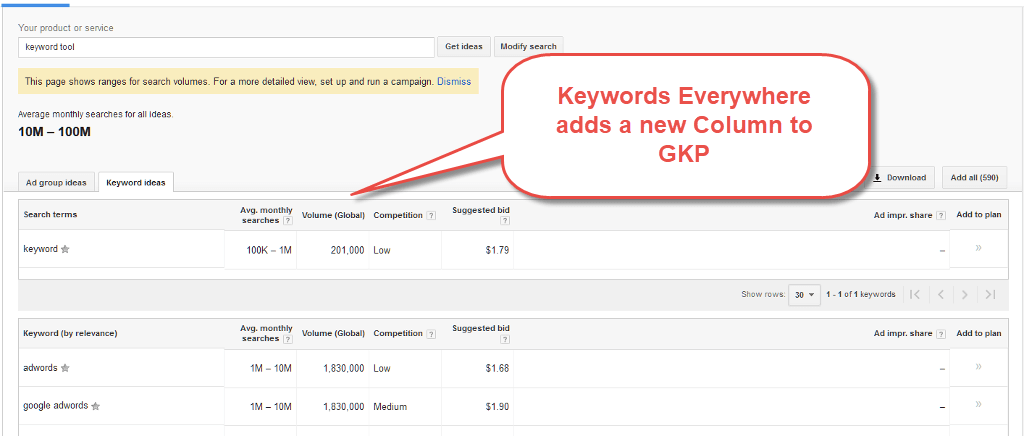
Google Keyword Planner
Shows the exact volume KP hides inside ranges, plus the volume for the close-variant keywords it groups together.
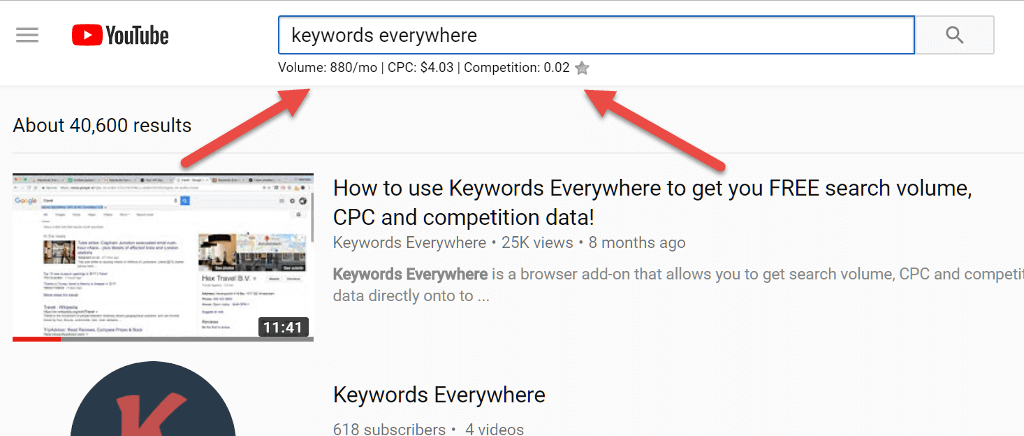
YouTube
Adds search volume, a tag generator and a YouTube Insights breakdown of the ranking videos.
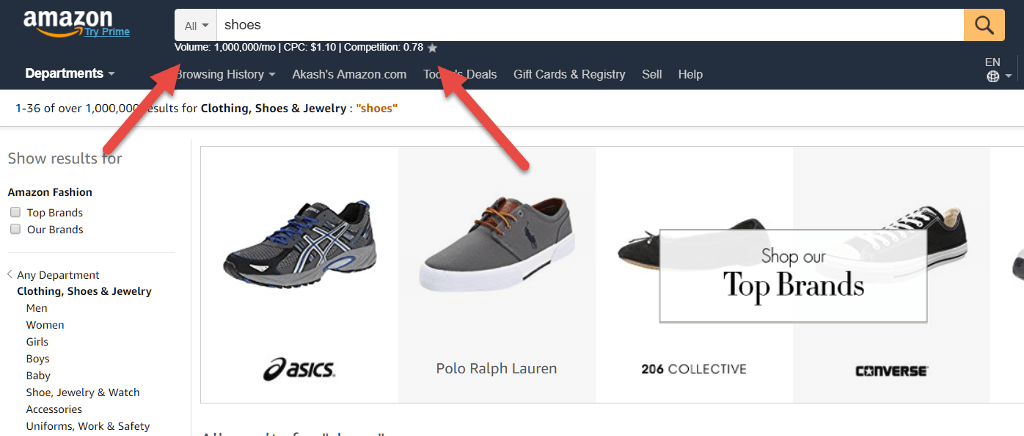
Amazon
Shows the Google volume for any Amazon search and surfaces hundreds of long-tail product keywords.
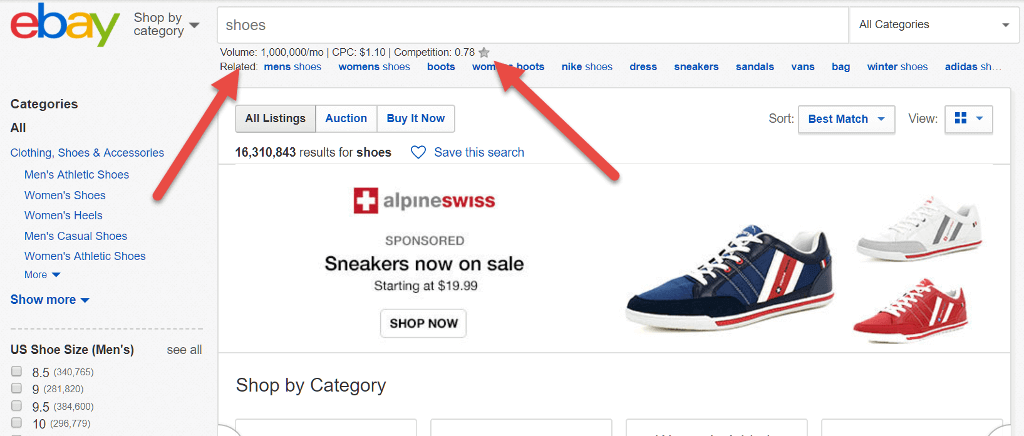
eBay
Adds the Google volume under the eBay search bar and finds long-tail buyer keywords to target.
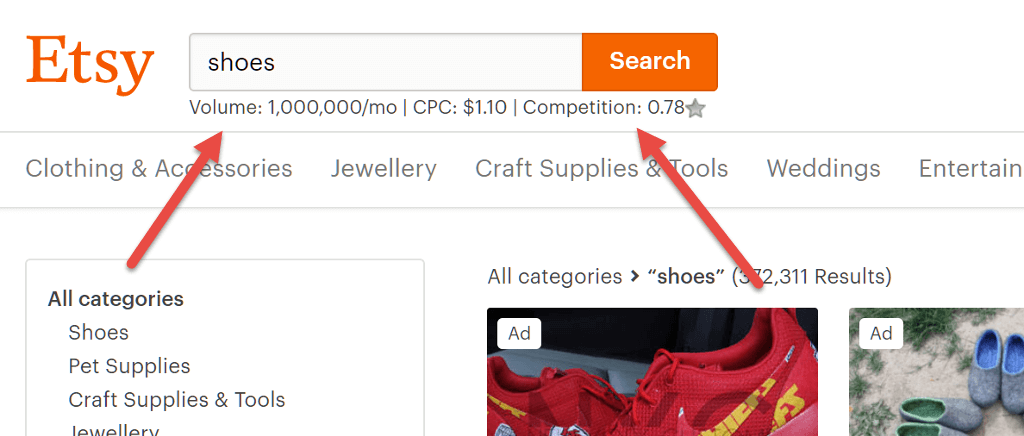
Etsy
Shows the Google volume on Etsy searches so you can compare demand between product ideas.
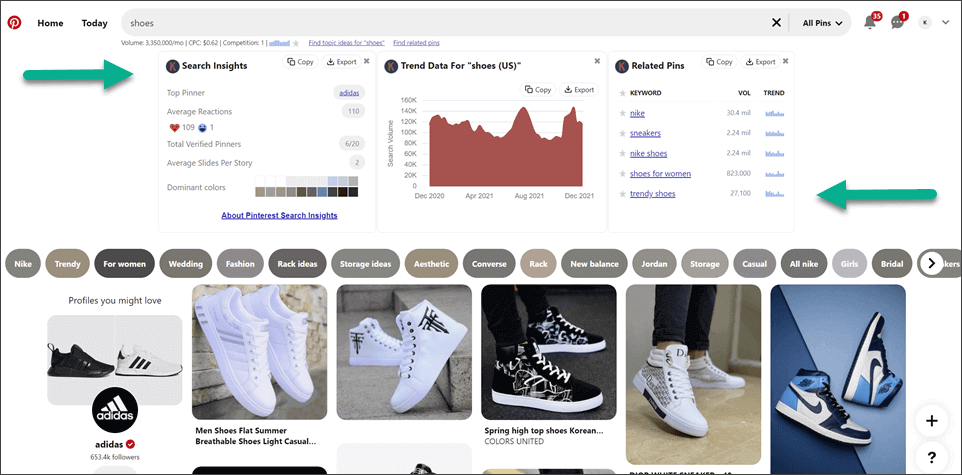
Adds free pin engagement insights, search volume and a Pinterest Trends chart.
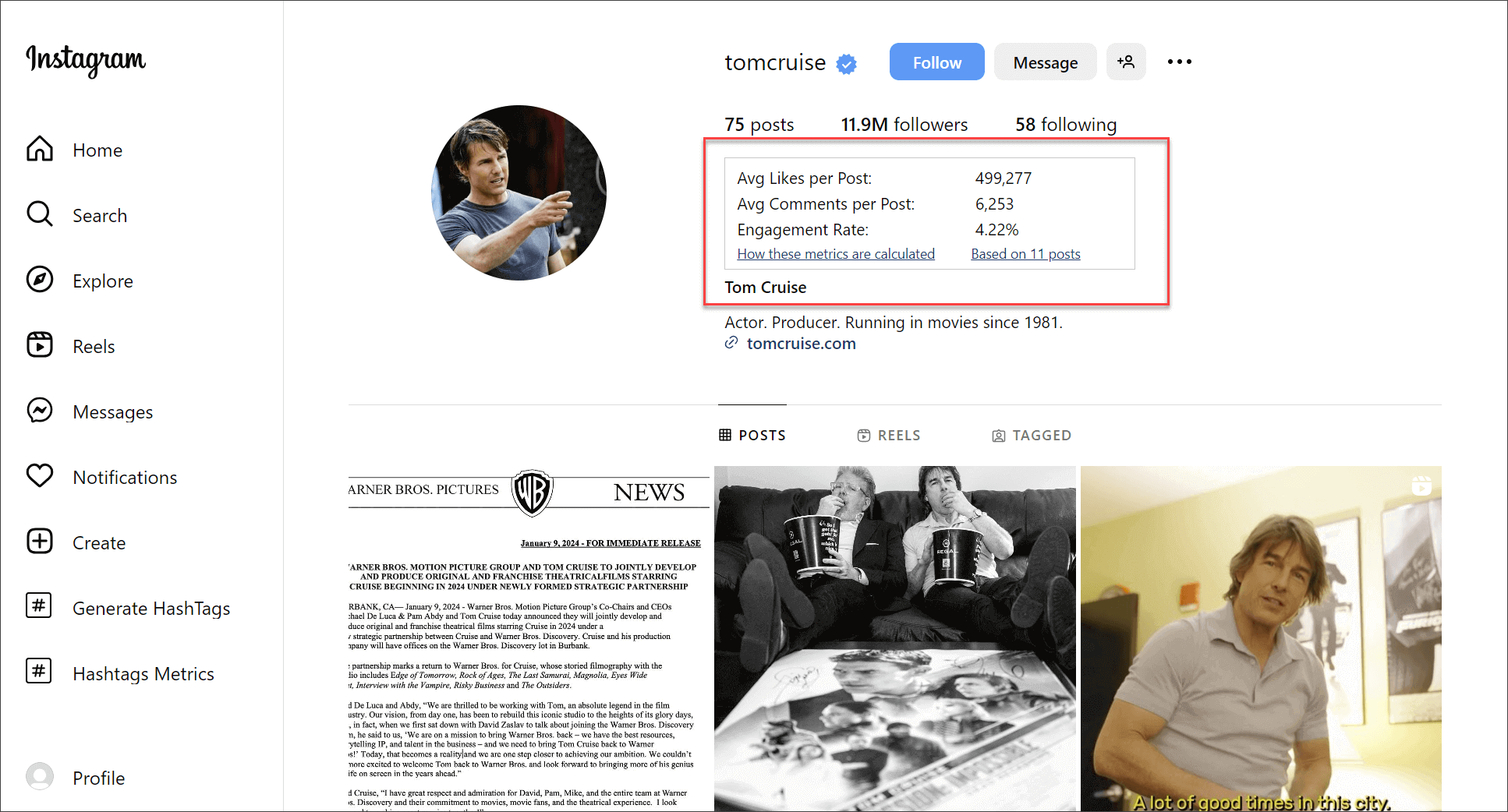
Free hashtag and engagement metrics on any Instagram profile or post.
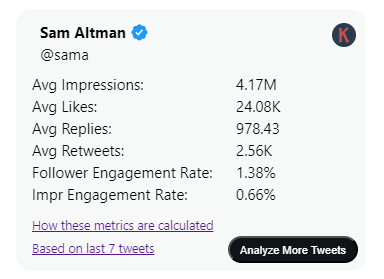
X (Twitter)
Free engagement metrics on tweets and profiles, so you can see what is really resonating.
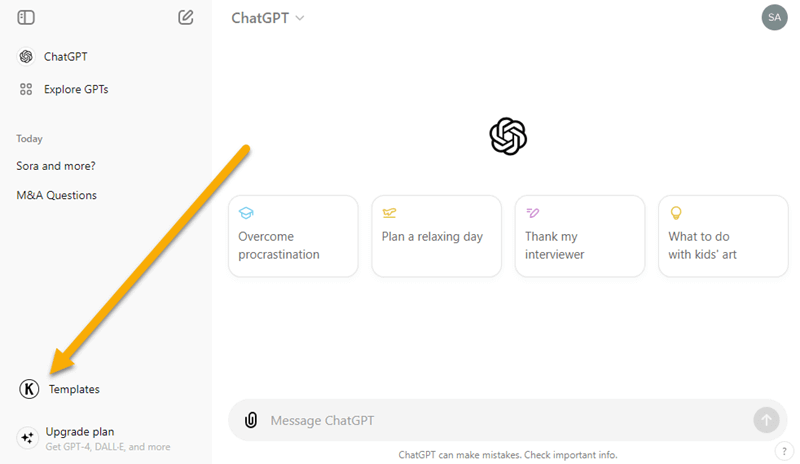
ChatGPT, Claude, Gemini, DeepSeek
200+ free prompt templates built into each AI chatbot. See the LLM tools overview.
Power features
Beyond the on-page widgets, a few tools handle the heavier research jobs.

Bulk lookups and export
Click the Keywords Everywhere icon and paste or import a list, up to thousands of keywords, to get the volume, CPC and competition for all of them at once. There is a bulk trends tool for historical volume too, and you can export everything to CSV or Excel.
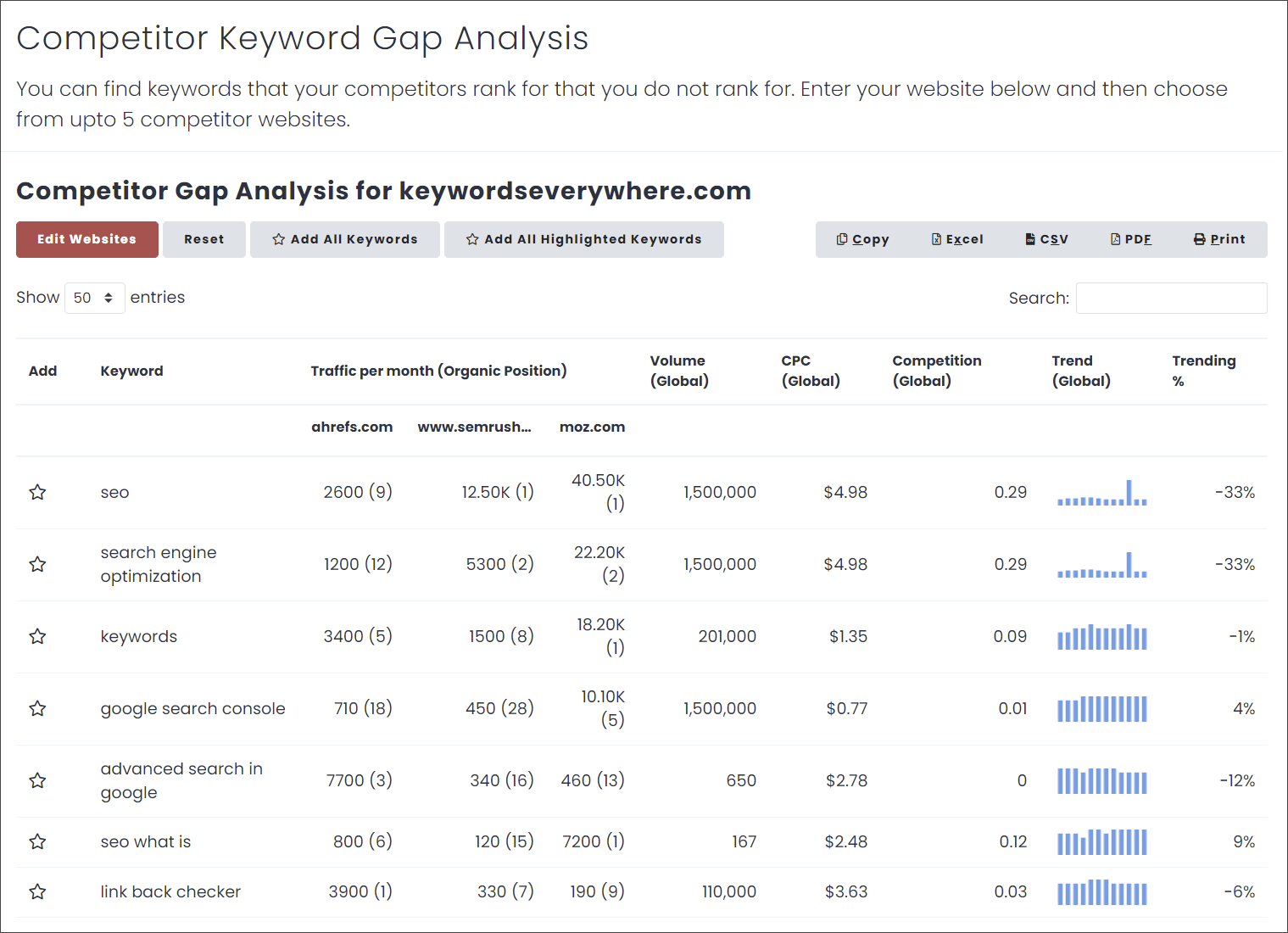
Keyword gap analysis
Compare your site against competitors to find the keywords they rank for and you do not, each with its volume and the competitors' positions.
REST API and MCP server
Pull all of this data programmatically over a simple REST API, or connect the MCP server to ChatGPT, Claude and other AI tools. Both use the same free API key. See the API documentation.
Settings, credits and SEO Minion
Turn any widget on or off and load metrics only on click, so you spend credits only where you want. Silver plans and up also include SEO Minion for on-page analysis and bulk PAA scraping.
Questions you may have
How does Keywords Everywhere work?
It is a browser extension. When you run a search on Google, or on one of the other supported sites, it looks up that keyword in Google Keyword Planner and shows the data, such as the monthly search volume, CPC and competition, right there on the page you are already on. There is nothing to copy and paste into a separate tool.
How do I start using Keywords Everywhere?
Three steps: install the extension for Chrome, Firefox or Edge, sign up for a free API key and enter it, then add credits if you want the paid metrics. The free features work as soon as the key is in. After that, just browse and search as you normally would and the data appears automatically.
Is Keywords Everywhere free to use?
The extension is free to install, and several features are free, including the LLM prompt templates, Instagram and Pinterest insights, and the related, "People Also Search For" and long-tail keyword lists shown without volume. Search volume, CPC, competition and the other metrics are a paid feature that uses credits.
Where does the keyword data show up?
On the page you are already on. Run a Google search and the volume, CPC and competition appear under the search box, with a trend chart and SEO difficulty on the right, plus widgets for related, "People Also Search For" and long-tail keywords. The same idea applies on YouTube, Amazon, Bing, Google Search Console, Google Trends and the other supported sites.
Which sites does Keywords Everywhere work on?
On Google it also covers Search Console, Analytics, Trends and Keyword Planner, and it works on Bing, YouTube, Amazon, eBay, Etsy, Pinterest, Instagram and X (Twitter), plus prompt templates inside ChatGPT, Claude, Gemini and DeepSeek. Each site shows the metrics that make sense there.
How do I look up a whole list of keywords at once?
Click the Keywords Everywhere icon in your toolbar and choose the bulk option, then paste or import your list, up to thousands of keywords, to get the volume, CPC and competition for all of them at once. You can copy the results or export them to CSV or Excel.
Does it work on any browser or on mobile?
It works on Chrome, Firefox and Edge on desktop. There is no Safari version and no mobile app. Your one free API key works across all of your devices, so you do not need a separate key for each browser.
Start using Keywords Everywhere
Install the extension, add your free API key, and the data switches on across every site above.
 Add to Chrome
 Add to Firefox
 Add to Edge
Already installed? Get your free API key.
Works on Chrome, Firefox and Edge.