
Let’s face it, you can’t realistically keep checking every part of your website all day. With internal updates, plugin changes, expired settings, deployment issues, and other moving parts, problems can easily slip through the cracks.
That’s where monitoring tools come in. They watch for things like downtime, slow response times, indexing and schema issues, and upcoming SSL or domain expirations, then give you a heads-up when something needs attention.
The good news is, you no longer need a separate monitoring tool for every issue either. With Website Monitor, you can keep tabs on all of these issues from one place and get instant email alerts when something goes wrong.
What Does Website Monitor Do?
For a business, overlooking a website issue can mean missed leads, lost sales, frustrated customers, or a sudden drop in search visibility. For agencies or professional SEOs, the stakes can be even higher. You may be responsible for multiple client websites, and finding out about a problem from the client first is never a good look.
Website Monitor helps catch these issues early by continuously checking for problems that can quietly build up in the background, including:
- Website Down- Website Monitor alerts you when your website becomes unavailable or stops responding.
- Slow Response– The tool also flags unusually slow response times that could affect visitors and overall site performance.
- Keyword Problem – It checks whether a specific word or phrase is present or missing from the page and alerts you when the expected condition changes. This helps catch missing buttons, pricing sections, important copy, error messages, or staging content appearing on a live page.
- SSL Expiring Soon– It warns you before your SSL certificate expires, giving you time to renew it before it starts causing trust or access issues for visitors.
- Domain Expiring Soon– We also keep track of your domain expiration date and give you a heads-up before it leads to business disruption, or worse, losing the domain altogether.
- Not Indexable– The tool checks whether important pages can still be indexed and alerts you if something suddenly blocks search engines.
- Schema Drift– It also watches your structured data for unexpected changes, which can happen after site edits, template updates, or plugin changes.
- Invalid JSON-LD– It even detects JSON-LD markup that has become invalid or contains errors that could prevent search engines from reading it properly.
Instead of manually checking each of these areas yourself, Website Monitor brings them together into one ongoing monitoring workflow, so you can spot issues faster and act on them sooner.
How to Start Using Website Monitor
You can get started with Website Monitor all for FREE. All you need is a Keywords Everywhere API key.
Step #1: Secure Your Keywords Everywhere API Key
To claim your free API key, just visit our Keywords Everywhere API Key page and input your email.
You will receive your API key via email right after. Once you have your API key, you can immediately start adding URLs you want to monitor.
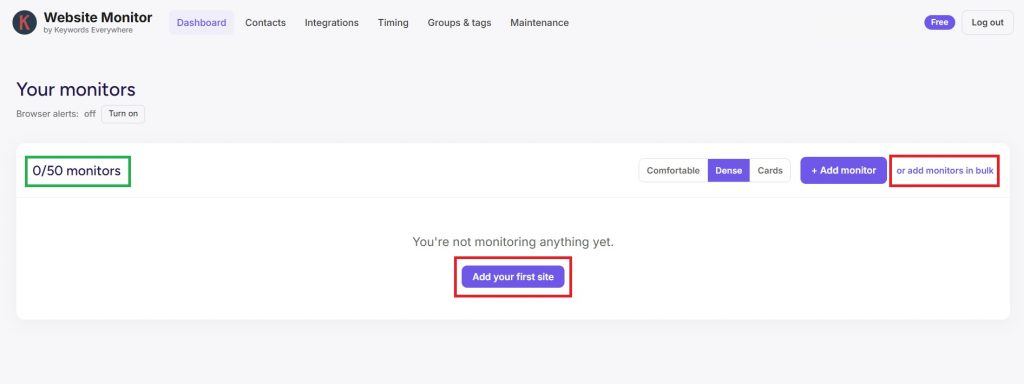


Step #2: Add URLs to Monitor
You can add one URL at a time or add multiple links in bulk. The free Website Monitor account lets you create up to 50 monitors, which is already plenty for individual site owners, freelancers, and even smaller agencies managing several websites.
If you want to cover more URLs, you can upgrade to paid Website Monitor plans which allow you to monitor up to 1000 websites.
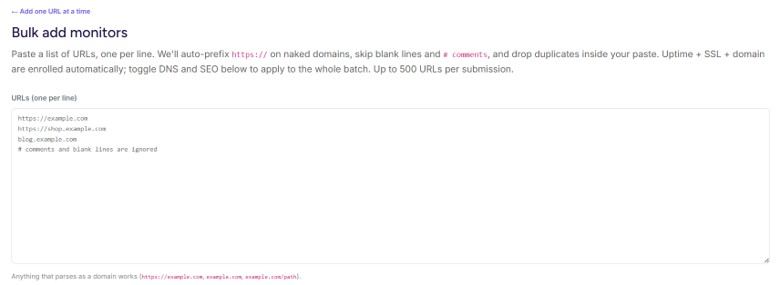
As you add URLs to monitor in bulk, you can also add groups and tags and enable extra checks to watch for DNS changes and run on-page SEO checks every 12 hours.
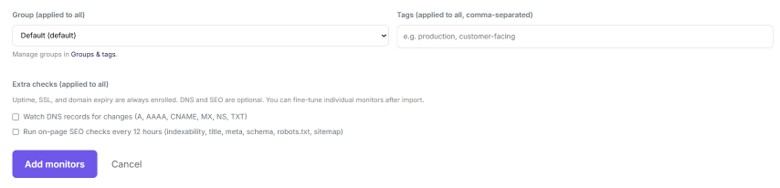
After pasting your target website/s, click “Add monitors” and in just a few minutes, you’ll get the full report on each site’s current status, response time, recent checks, and any SEO or schema issues detected.

3. Wait for Email Alerts or Use Dashboard Filters
Once your monitors are live, Website Monitor does the watching for you. It will instantly send email alerts whenever it detects something important, such as downtime, DNS changes, an SSL certificate nearing expiration, schema drift, or a site recovering after an issue.

You can also head back to the dashboard anytime and use the Issue filter to quickly narrow things down by status:
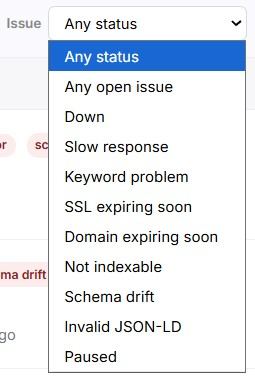
For example, choose “Domain Expiring Soon” and you’ll instantly see which sites are nearing renewal. That’s especially useful for agencies or freelancers managing client websites, where one missed domain renewal can quickly turn into downtime and an awkward client call.

You can do the same for other common issues, such as SSL certificates nearing expiration, websites going down, slow response times, indexing problems, schema drift, or invalid JSON-LD.
Over time, the filters can become part of your regular monitoring routine, giving you a quick snapshot of what’s happening across your sites. They’re also useful during reporting, audits, or client meetings when you need to pull up the latest issues quickly without having to dig around.
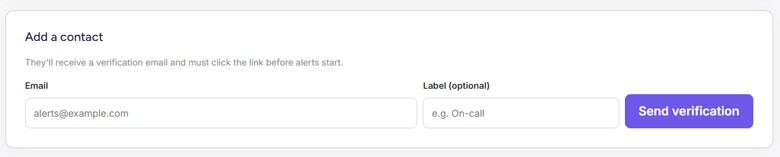
If there are other people besides you who should be receiving the same email alerts, you can also add as many points of contact per website as needed. Just click on the website and locate the Alerts section or go directly to the tool’s Contacts menu.

Step 4: Add Other Configurations
Besides the main Dashboard, you can explore Website Monitor’s Menu options for other configuration options that make your website monitoring process even more streamlined.

● Contacts
Under the Contacts page, you can add additional recipients for workspace email alerts, making it easier to keep teammates, clients, or stakeholders in the loop.
● Integrations
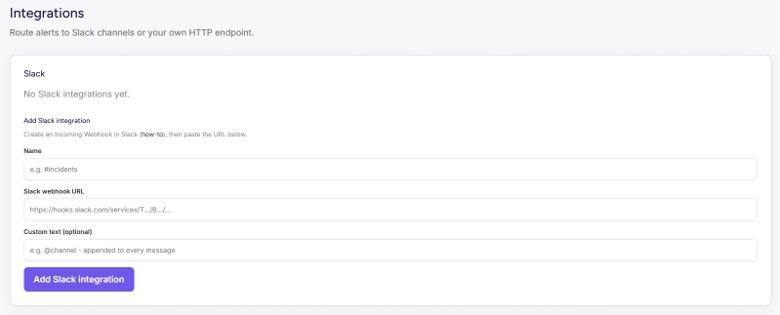
Under Integrations, you can send Website Monitor alerts straight to a Slack channel or route them to your own HTTPS endpoint using a generic webhook, so issues can flow directly into the tools your team already uses.
● Notification Timing
You can also control when and how often alerts are sent, which helps keep notifications useful instead of creating notification overload.
For example, you can delay an email alert by 60 seconds to avoid getting notified about a tiny one-minute blip, then have a Slack alert repeat every 30 minutes until someone acknowledges the issue.
You can set these timings separately for email, browser push, Slack, and webhooks, and apply them as workspace defaults across your monitors.
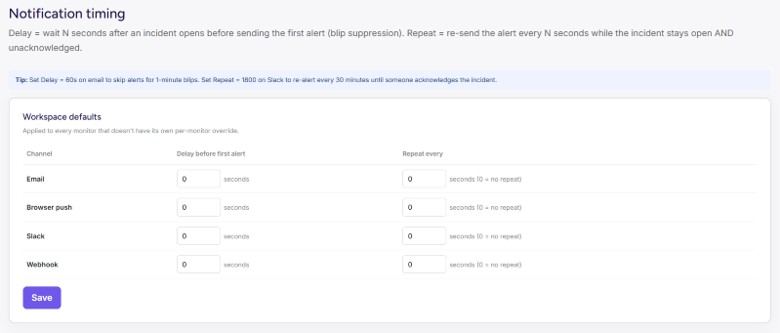
You can also override these workspace defaults for individual monitors, which is useful when certain sites need different alert rules. For example, a high-priority client site might need faster or more frequent notifications, while a lower-priority monitor can stick with your standard settings.

● Groups and Tags
You can also keep a growing list of monitors organized with Groups and Tags. Groups let you bucket monitors into broader categories like Personal or Clients, while tags give you more flexible labels you can use for filtering.

That’s especially useful for agencies or anyone managing lots of sites. You might group monitors by client, then add tags for things like production, priority, SEO, or specific campaigns, so you can quickly narrow the dashboard to exactly what you need.
● Maintenance Windows
You can also schedule Maintenance Windows to suppress alerts during planned downtime, so routine updates or deployments don’t trigger unnecessary notifications. Website Monitor will still run its checks during the window, but alert delivery is temporarily blocked.

You may choose the start time, duration, recurrence, time zone, and which monitors the window applies to, making it useful for anything from a one-off update to regularly scheduled maintenance.
Once everything is set up, Website Monitor becomes fairly hands-off. Your sites keep getting checked in the background, while alerts, filters, groups, integrations, and maintenance windows help you control how issues are surfaced and who sees them. The only time you need to step in is when something actually needs attention.
What SEO Changes Can Website Monitor Track?
Website Monitor goes beyond uptime and expiration checks by regularly re-reading your pages and comparing them with the previous version. This helps you catch SEO changes that might otherwise stay unnoticed until rankings or traffic are already affected.
It can monitor changes across several areas, including:
- Indexing and crawlability: Detect changes to meta robots tags, X-Robots-Tag headers, canonical URLs, redirects, HTTP status codes, and robots.txt.
- On-page content: Track changes to title tags, meta descriptions, H1s, and optionally H2s, H3s, published dates, and body content.
- Structured data: Check whether JSON-LD remains valid and whether important schema details still match what appears on the page.
- Analytics and tracking: Alert you if Google Analytics, Google Tag Manager, other analytics tools, or selected marketing pixels disappear.
- Links and page structure: Monitor changes to outbound links, navigation, footer links, internal anchor text, image ALT-text coverage, and Open Graph information.
- Ecommerce pages: Watch Product schema for changes to price, currency, and availability.
- XML sitemaps: Detect when URLs are unexpectedly added to or removed from a sitemap.
- Custom checks: Create your own XPath, CSS, regex, HTTP header, or JSON checks for site-specific elements you want to monitor.
To know the full list of SEO changes Website Monitor can track, you can check out our SEO alerts page.
You don’t have to turn every alert on, either. Website Monitor includes a mix of always-on, enabled-by-default, opt-in, and custom alerts, so you can decide how closely each page needs to be watched.
This makes the tool especially useful for catching sneaky SEO regressions after site deployments, CMS updates, plugin changes, redesigns, or content edits.
Final Thoughts
Website Monitor is basically about staying ahead of issues instead of finding out after they’ve already caused trouble. It gives you one place to track site health, catch SEO and technical problems, organize multiple monitors, and control how alerts are sent, making it especially useful when you’re managing several sites or client accounts at once.
It’s easier than ever to turn monitoring into a simple, proactive workflow where issues get spotted, routed, and acted on before they escalate. Start monitoring your websites for free and catch problems before they become bigger headaches.
Start using Keyword Everywhere’s Website Monitor today!

