

If you have ever paid for an SEO tool just to track keyword rankings and find a few easy opportunities, you know how quickly the costs can stack up. Premium SEO platforms often start around $117 to $129 per month for entry-level plans and climb much higher from there.
If all you really need is a simpler way to track rankings and understand your search data, websiterankingchecker.com is a refreshingly generous FREE alternative that does a lot of the same job.
Let’s take a closer look at everything it can do and how it works.
What is Website Ranking Checker?
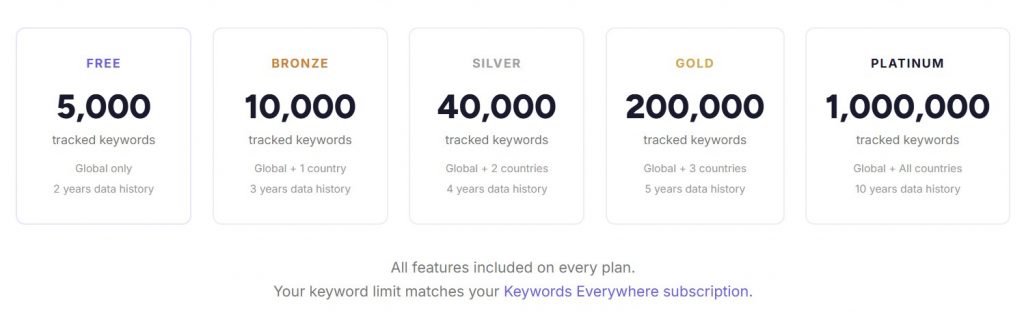
Website Ranking Checker is one of the rare and genuinely free keyword ranking trackers– not just another trial or watered-down freebie. While many tools cap you at 3 to 10 keywords on a free plan, Website Ranking Checker starts with a whopping 5,000 chosen keywords. And if you need more room, the paid tiers scale up from 10,000 to 40,000, 200,000, and all the way to 1,000,000 tracked keywords.


The tool uses Google Search Console data to help you track rankings, spot quick wins, and make sense of search performance without paying for a full SEO suite.
Google Search Console is incredibly useful, and most SEOs rely on it as their baseline source of truth for clicks, impressions, and keyword rankings. However, it’s still largely a raw data dashboard. You’re usually stuck doing the same manual routine every time—clicking through raw tables, stacking filters, comparing date ranges, and trying to spot what changed without missing something important. Even when the data is there, it’s buried in averages and spread-out views, so figuring out which keywords are near page 1, which pages are slipping, and what to fix first can feel like a weekly spreadsheet chore.
Website Ranking Checker takes those same GSC signals and organizes them into clearer views like tracked keywords, top pages, and movers, then surfaces action-focused buckets like Quick Wins, CTR Opportunities, and Content Decay. This way, you can spot the highest-impact opportunities immediately instead of digging through tables to find them. In short, it’s more than just a simple keyword ranking tracker. It does a whole lot more and gives you more context than rankings alone ever could.
Why Should You Use Website Ranking Checker?
First, it’s worth looking at how the tool makes the workflow easier. SEO tools are most useful when they help you move from data to action faster, and that’s really where Website Ranking Checker really fits in. Here are a few of the biggest benefits:
1. Less digging, faster decisions
Google Search Console gives you plenty of useful data, but getting to the insight you actually need can take a lot of clicking around. You often have to jump between tabs, stack filters, compare date ranges, and scan raw tables just to figure out what changed. Website Ranking Checker cuts that down by organizing the same search data into clearer views, tracked keyword lists, and ready-made reports, so you can spot what matters faster and make decisions without the usual back-and-forth.
2. Built for prioritization
Instead of staring at a long table and wondering where to start, you get a clearer sense of which issues are most likely to move the needle. Website Ranking Checker generates opportunity-focused reports like Quick Wins, CTR Optimization, Content Decay, and Rising Keywords to help you spot the most actionable opportunities faster.
It also helps surface opportunities that would be easy to miss in Google Search Console alone, like keywords sitting just outside page 1, pages quietly losing clicks, or search terms Google is starting to associate with your site even before you have intentionally targeted them.
3. From keyword tracking to opportunity tracking
This is not just about watching rankings go up and down. It’s about understanding which ranking changes actually matter and what to do next. Instead of treating keyword tracking as a passive reporting exercise, Website Ranking Checker turns it into something more actionable by grouping data into opportunities you can work on right away.
4. More actionable keyword metrics
Google Search Console is great for showing clicks, impressions, and average position, but it does not give much context around how valuable a keyword might actually be. A term may be getting visibility, but without metrics like search volume and CPC, it’s harder to tell whether it’s just another ranking or one keyword that could actually move the needle.
Website Ranking Checker adds Keywords Everywhere metrics like search volume, CPC, and even estimated traffic value, so you can read keyword opportunities with a lot more context. Instead of evaluating keywords on rankings alone, you get a clearer sense of which opportunities may have stronger traffic potential or commercial upside.
5. Catch SEO problems before they snowball
The thing is, small issues can turn into bigger ones if they sit there too long. With daily data updates, built-in reports, and alert options, Website Ranking Checker helps you catch those early signals sooner, before they become a much bigger cleanup job.
6. Helps you focus on what matters
You don’t need to track every keyword or inspect every fluctuation. Website Ranking Checker makes it easier to focus on the pages, queries, and opportunities that actually connect to traffic, leads, and revenue. That makes the whole workflow more intentional and less cluttered.
7. Makes Google Search Console easier to actually use
Google Search Console is still the source of truth here, but Website Ranking Checker adds a cleaner layer on top of it. You still get the same core data, just in a format that is easier to filter, monitor, and turn into action. For a lot of users, that’s often what makes the biggest practical difference.
8. Free to use
If you’re already juggling enough SEO costs, this part helps. Website Ranking Checker is free to get started, so you can try it without adding another monthly expense. And unlike a lot of “free” keyword rank tracking tools that feel heavily restricted, this one gives you real room to work with. With this much built in and no cost to get started, it’s pretty much a no-brainer to try.
If you want to squeeze more value out of your GSC data, Website Ranking Checker absolutely earns a spot in your stack.
9. A better fit for ongoing SEO work
SEO is rarely about one big fix. More often, it’s a steady process of spotting patterns, making improvements, and checking what changed. Website Ranking Checker fits that workflow well because it helps you monitor performance over time, discover new opportunities, and keep your attention on the highest-impact next steps.
10. Set up once, then let the data start flowing
The setup is straightforward, and once it’s done, the tool starts doing the heavy lifting in the background. Your data keeps updating, your reports keep populating, and your workflow gets a whole lot lighter.
With Website Ranking Checker, the biggest advantage is not that it gives you more data, but that it helps you use the data you already have more effectively. That alone can make ongoing SEO work feel a lot more manageable.
How Website Ranking Checker Works
Website Ranking Checker is powered by Keywords Everywhere, so you need a Keywords Everywhere API Key + at least one website verified in Google Search Console.
You can get a Keywords Everywhere API key for FREE. Just click here, input your email, and your API Key will be sent via email shortly after. No need to register or go through a full signup process.
How to Set Up Website Ranking Checker
Right after logging in, you’ll see a short four-step setup wizard. It’s just there to get the basics in place, and nothing is locked in. You can update any of it later from Settings.
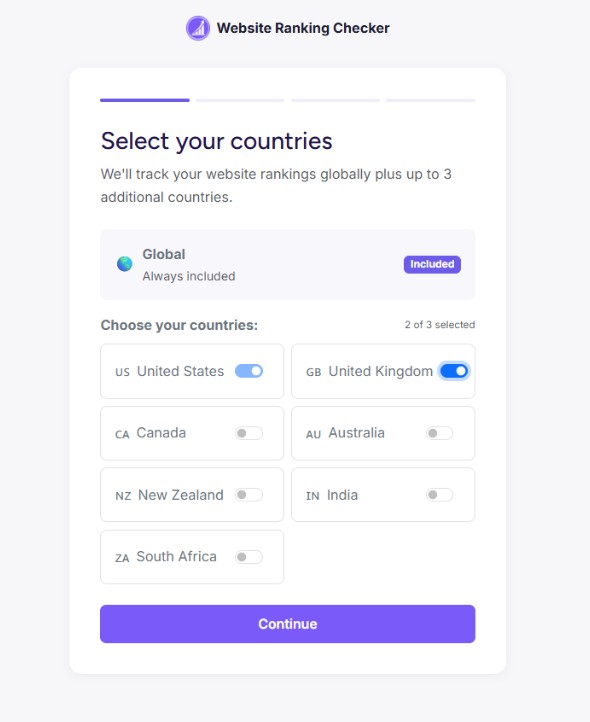
Step 1: Select your target country
On paid plans, the first step is choosing which countries you want to track separately. Paid users can add individual countries such as the US, UK, Canada, or Australia to get a clearer view of keyword performance in specific markets. Free plan users won’t see this step because global data is the only option available at that level. If you upgrade later, you can come back and add countries anytime in Settings.
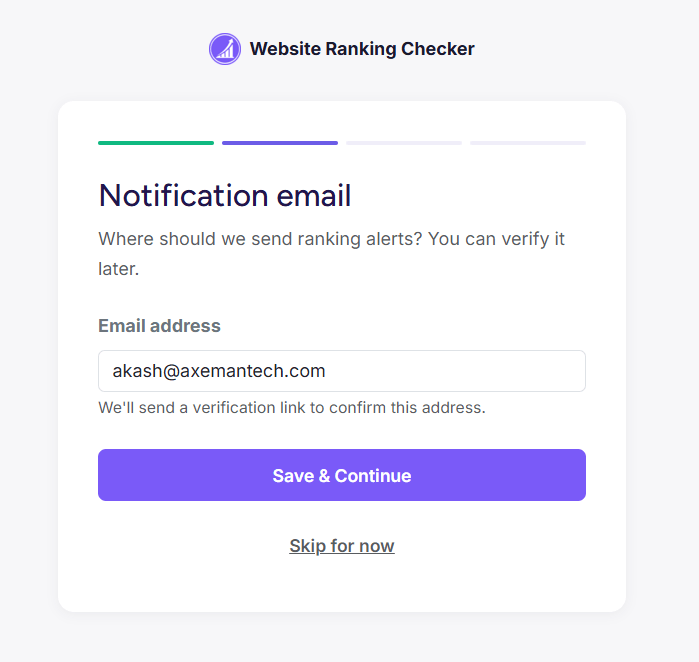
Step 2: Notification email
Enter the email address where you want to receive ranking alerts. We’ll send you a verification link, but this step is optional for now and can be completed later.
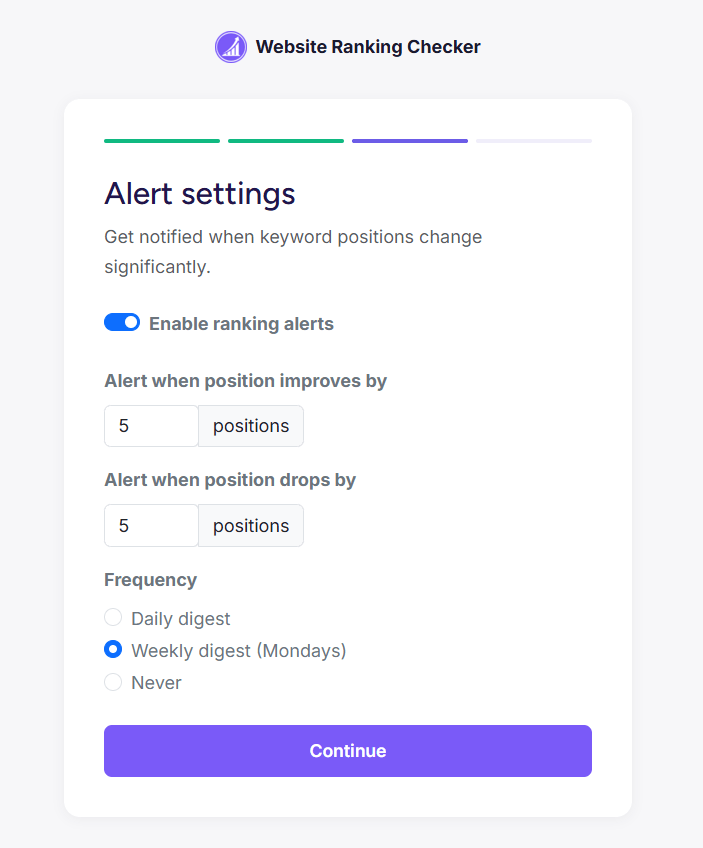
Step 3: Alert settings
Choose your ranking alert preferences. You can enable notifications, set how far a keyword needs to move before an alert is triggered, and decide between daily digests, weekly Monday summaries, or no alerts at all.
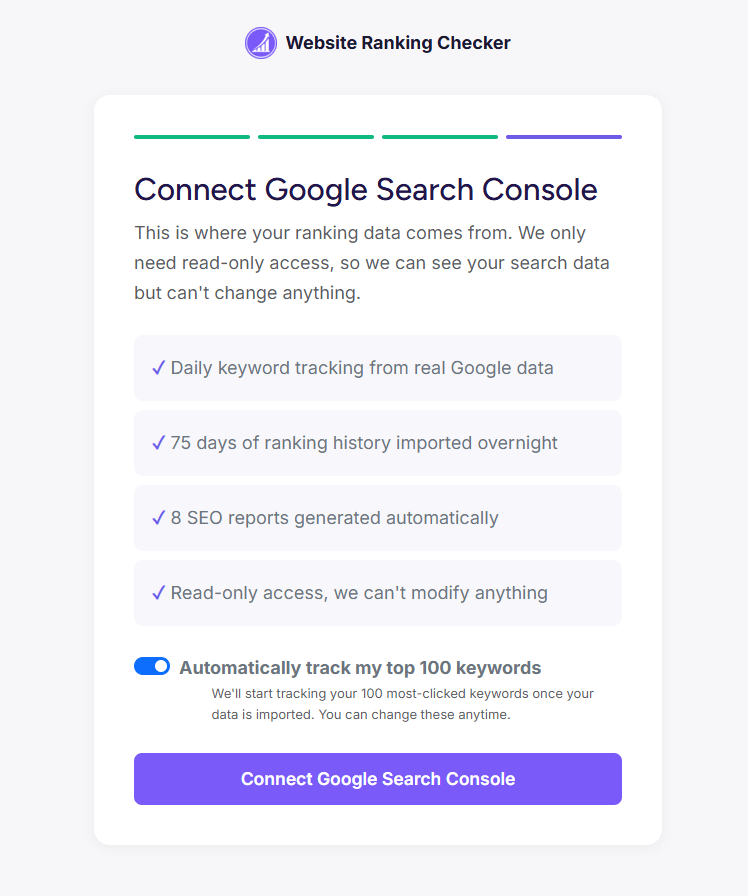
Step 4: Connect Google Search Console
This is the key step. Connecting Google Search Console is what powers the tracker and lets it pull in your search performance data. Access is read-only, so your account data stays safe and cannot be modified.
After you click “Connect Google Search Console,” Google will ask you to log in and confirm the connection. Once permission is granted, the platform automatically brings in all verified websites tied to your account and starts syncing search data.
At the bottom, you’ll also see the “Automatically track my top 100 keywords” toggle. It’s turned on by default, which means the tool will begin tracking your 100 most-clicked keywords as soon as the import is complete. That way, you get useful data right away without having to build a keyword list manually. But again, this is optional and just a shortcut to help you get going faster. You can choose to toggle it off and add keywords manually later.
After connecting GSC, you’ll see a purple banner at the top of the app letting you know the import is in progress. This usually takes up to an hour, depending on how much data your account has. We pull in up to 75 days of search history, so your charts and trend views have data from the start.
Once everything is ready, you’ll get an email confirmation. While the import is running, you can still explore the app, and you’ll notice pages gradually filling in as the data comes through.
Dashboard Overview
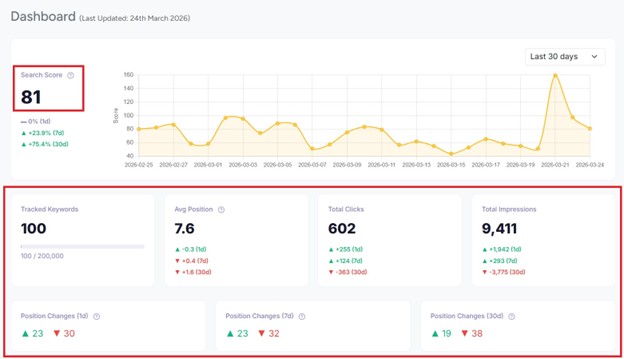
The Dashboard is your main starting point each day. It gives you a quick read on how your search performance is doing right now, so within seconds, you can tell whether things are moving up, holding steady, or slipping.
For a website rank checker you can start using at no cost, this is a pretty awesome high-level view of your rankings, clicks, and impressions.
• Search Score
At the top, you’ll see a 90-day chart for Search Score. This is a combined metric that factors in your rankings, clicks, CPC, and impressions to show how your overall search presence is trending over time. When the line rises, things are generally improving. When it falls, there may be an issue worth paying attention to.
Just below that, you’ll find percentage change indicators for 1 day, 7 days, and 30 days. These help you judge whether a drop is just a temporary dip or part of a broader trend.
• Stats cards
Right below the chart, the four stat cards summarize your most important performance numbers:
- Tracked Keywords shows the number of keywords you’re actively tracking, along with your plan limit.
- Avg Position shows the average ranking of those keywords, where lower is better.
- Total Clicks shows the number of Google Search clicks in the latest available period.
- Total Impressions shows how many times your pages showed up in search results.
On each card, you’ll also see changes for 1 day, 7 days, and 30 days. Green arrows indicate improvement. Red arrows indicate decline. This is super helpful and gives you a quick, practical way to monitor performance without having to open deeper reports every time.
• Position Changes
The Position Changes cards tell you how many of your tracked keywords gained or lost positions. That gives you a fast read on whether rankings are holding steady overall or moving around more than usual.
Report widgets and movers
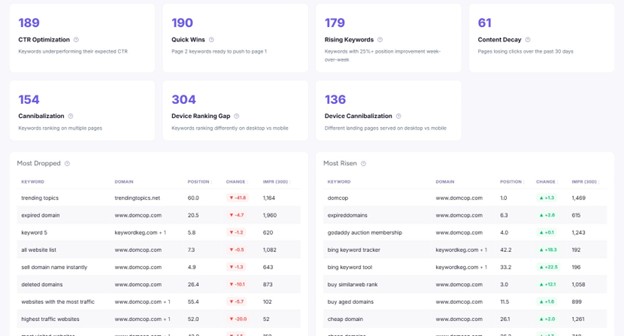
Keep scrolling and you’ll reach summary widgets for reports like CTR Optimization, Quick Wins, Rising Keywords, and Content Decay. Each one shows how many possible opportunities were found, and clicking a widget takes you directly to the matching report.
Below those, the Most Dropped and Most Risen tables show the biggest ranking movers over the past 24 hours. The list is ordered by impact, not just the size of the position jump. That means a keyword slipping from 3 to 6 is treated as more important than one dropping from 80 to 90, since changes near the top usually affect traffic more.
How to Track Keywords
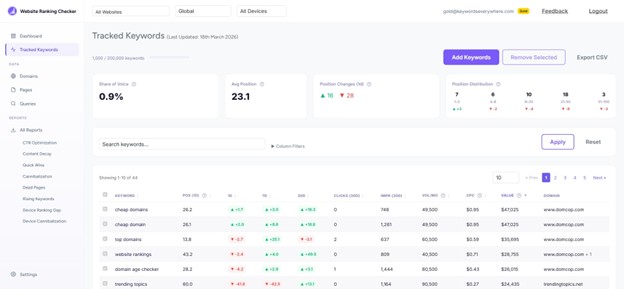
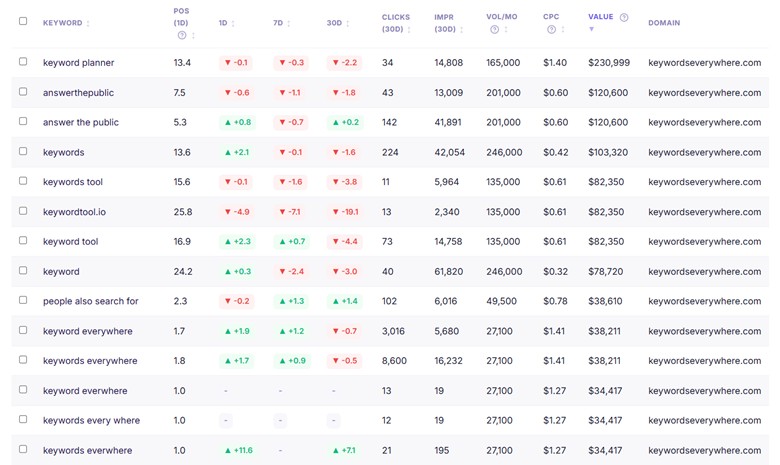
The Tracked Keywords page is the main working area for day-to-day tracking. It lists all the keywords you’ve chosen to monitor and shows their daily position changes, ranking history, and additional data from Keywords Everywhere including search volume and CPC.

Summary cards
At the top, you’ll see four cards that summarize the current state of your tracked keyword set:
- Share of Voice shows the percentage of total possible impressions you’re capturing.
- Avg Position shows the average ranking across all tracked keywords.
- Position Changes (1d) shows how many tracked keywords moved today.
- Position Distribution shows how those keywords are spread across ranking tiers such as 1–3, 4–8, 9–20, 21–50, and 51–100.
The keyword table
The table is where each tracked keyword is broken down row by row, along with its key metrics:
- Position shows the best rank across all your connected domains.
- 1D, 7D, 30D show movement over the past 1, 7, and 30 days.
- Clicks and Impressions (30d) show the latest 30-day search traffic data.
- Vol/Mo shows estimated monthly search volume from Keywords Everywhere.
- CPC shows the Google Ads cost per click, which can also hint at commercial value.
- Value estimates how much that organic traffic is worth based on clicks times CPC.
- Domain tells you which of your sites ranks for the term.
If you click a row, the app opens a position history chart so you can review how the keyword has moved over time.
Adding keywords
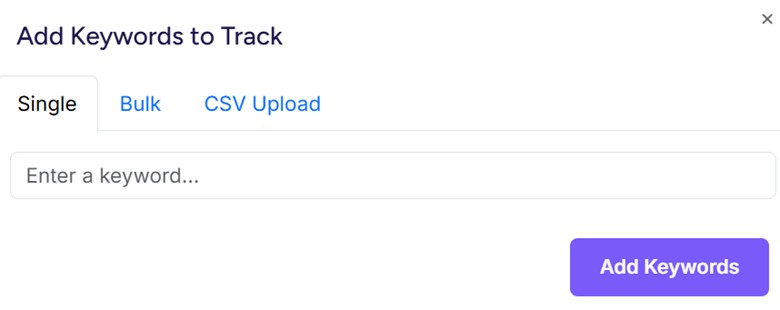
Click the purple Add Keywords button to enter keywords manually. You can add a single keyword, a bulk list, or even upload a CSV file.
You can also head to the Search Queries page and click Track beside any query you want to keep an eye on. That route is often better since you’re selecting from terms Google already connects to your site.
Sorting and filtering
Click any column header to sort the table. Use the search box to quickly pull up specific keywords. For a tighter view, click Column Filters to narrow results by position, search volume, CPC, and other metrics.
Exploring Search Queries
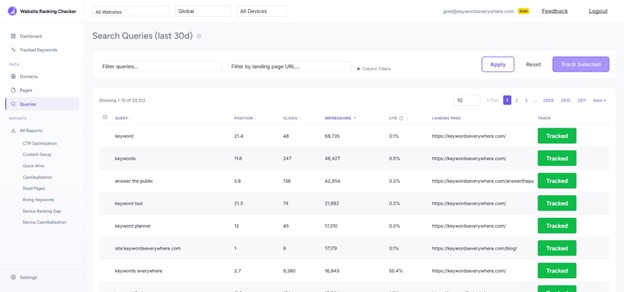
The Search Queries page shows all the search terms that triggered your site in Google results during the last 30 days. This gives you a direct look at your site’s actual keyword footprint based on Google Search Console data.
You can treat this page like a built-in keyword discovery tool. It often surfaces search terms you weren’t actively targeting but are already getting visibility for. Some will be worth tracking right away, and some won’t.
Tracking a keyword
If you see a query that matters to your business, click the purple Track button on the right. That keyword will instantly show up on your Tracked Keywords page, where it starts collecting daily position snapshots, Keywords Everywhere metrics, and alert monitoring.
If a keyword is already being monitored, you’ll see a green Tracked badge instead.
What to look for:
- High impressions, low clicks: You’re appearing in search, but searchers aren’t clicking through. That usually points to a weak title or meta description.
- Strong rankings, weak CTR: Ranking in the top 5 with CTR below 2% is usually a sign your snippet needs to be more compelling.
- Queries you didn’t expect: These can reveal fresh content ideas or keyword angles you hadn’t planned around yet.
Analyzing Page-Level Performance
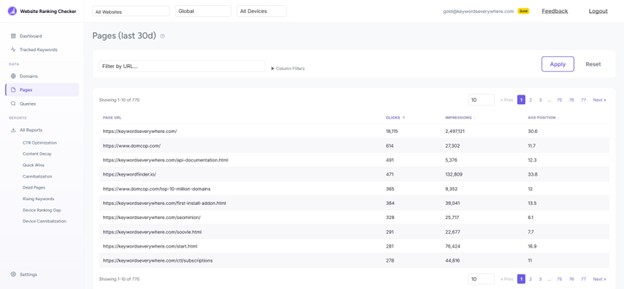
The Pages view surfaces every page on your site that has shown up in Google search results, sorted by clicks. It’s the same underlying data you would get from Google Search Console, just much easier to navigate when you want to evaluate page-level SEO performance.
This page helps you quickly spot:
- Top traffic-generating URLs
- Pages with visibility but poor click performance
- Pages with the strongest average rankings
Analyzing Domain-Level Performance
The Domains page shows all the websites connected to your Google Search Console account. Each site appears as a card with a quick snapshot of its keywords, clicks, impressions, and average position.
Enabling and disabling domains
Each domain has a toggle switch. When a domain is enabled (green), we keep fetching its search data every day. When it is disabled (grey), new data stops coming in, but all the historical data you already have stays right where it is.
This is especially useful if you manage several sites and only want to keep a few active in the dashboard for the time being.
To focus on just one website, use the All Websites dropdown in the top navigation bar. Once selected, that filter applies across the Dashboard, Tracked Keywords, Queries, Pages, and all reports.
How to Check SEO Reports
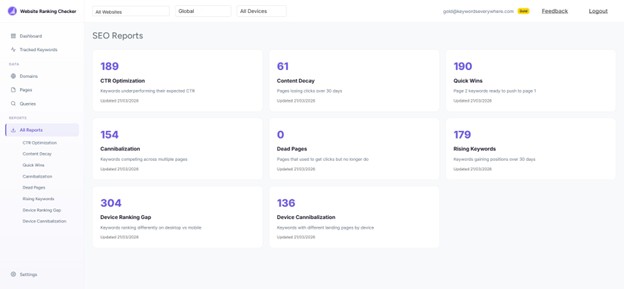
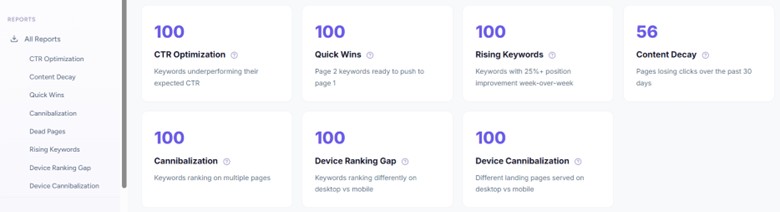
To make things easier to review, Website Ranking Checker creates 8 daily opportunity reports automatically. Each report covers a different angle of your search data and pulls out practical opportunities you can work on next.
On the reports summary page, you’ll see all 8 reports in one place, along with the opportunity count for each. Click any card to open the full report and dig in.
The 8 SEO Reports
Each report is built to flag a specific kind of SEO opportunity, so instead of digging through raw data yourself, you can go straight to the stuff that actually needs attention.
1. CTR Optimization
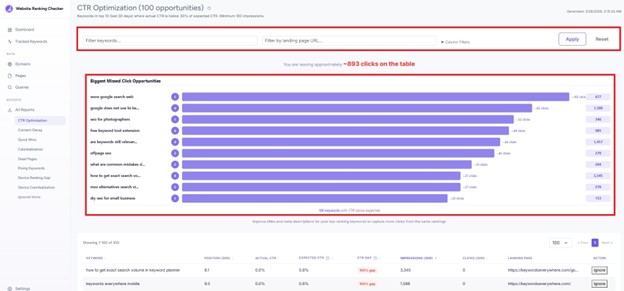
This report makes it easy to spot which pages have the weakest SEO titles and meta description. To be exact, it finds keywords already ranking in the top 10 where the click-through rate is lower than expected for that position. It also keeps things focused by highlighting the top 10 biggest missed-click opportunities. If you want to explore the full list of CTR optimization opportunities, just scroll down the page to access the full CTR Optimization report.
Just note that a lower-than-expected CTR does not always mean the page is doing something wrong. In some cases, Google is simply answering more of the query directly through AI Overviews, featured snippets, or other SERP features, which can reduce clicks even for well-ranked pages. So this is not a report to panic over. It’s more of a prompt to review where the biggest opportunities still exist.
A quick fix is usually to improve your title tags and meta descriptions so the snippet is more compelling. If that does not help, dig into the SERP and see whether competitors are doing a better job with search intent, freshness, or content depth.
2. Content Decay
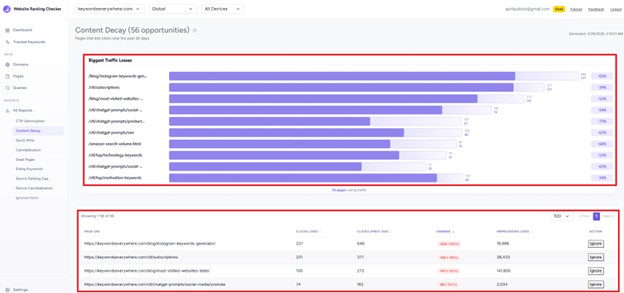
This highlights pages that are losing clicks compared to 30 days ago, so you don’t have to wonder where traffic is slipping most. Content decay is common, but because it tends to happen gradually, it often gets overlooked until performance has taken a more noticeable hit.
In most cases, that usually means the content is getting stale, competitors have improved, or search intent has shifted a bit.
If you want to make content refreshes a regular part of your strategy, this report gives you a clear starting point by showing which pages are most worth updating first. Start by refreshing the page, updating outdated information, and checking what newer competing pages are doing differently. The sooner you catch the decline, the better your chances of turning it around.
3. Quick Wins
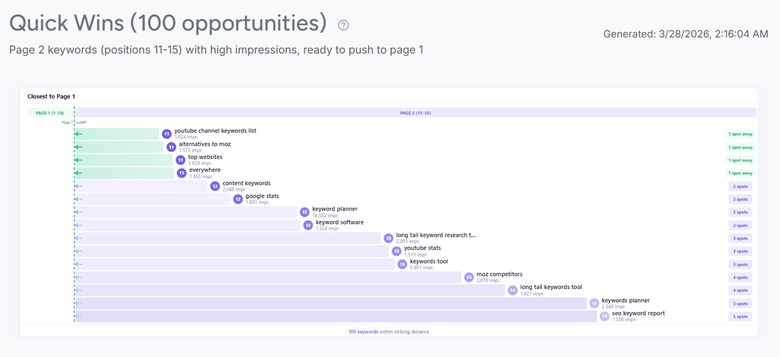
This report surfaces keywords ranking in positions 11 to 15 with strong impression counts. These are some of the closest opportunities to page 1, which makes them especially worth paying attention to. A modest push, like improving the content, tightening internal links, or building a few backlinks, may be enough to move them up.
That makes them some of the more urgent content refresh candidates. In many cases, they are worth tackling before lower-ranking pages because the upside is closer and easier to unlock. For a broader view of what to refresh first in SEO, this guide breaks down the recommended order of priority.
4. Cannibalization
Keyword cannibalization is one of the more common SEO mistakes, especially on growing sites that publish lots of content around similar topics. It happens when two or more pages end up targeting the same keyword or search intent closely enough that Google struggles to decide which one should rank. That can lead to unstable rankings, split clicks, diluted link equity, and cases where the weaker page ranks instead of the one you actually want to surface.
It becomes more worth worrying about when the overlap starts hurting a page that actually matters, like when a revenue-producing landing page loses visibility to a blog post, guide, or other random page that was never meant to convert.
That’s why it’s so important to map your keyword strategy to the right search intent and give each page a clear job from the start. When content planning is loose, it becomes much easier for overlapping pages to compete with each other instead of supporting each other. A cannibalization report like this is handy because it helps surface those conflicts early, so you can spot overlap, clean up targeting, and make sure the page you actually want ranking is the one Google sees as the best fit.
If you do find serious cannibalization issues, quick fixes include:
- Merging overlapping pages into one stronger page
- Rewriting the page to target a clearly different intent
- Tightening internal links so they point to the preferred URL
- Updating titles, headings, and copy so each page has a more distinct role
In some cases, it also makes sense to redirect the weaker page or use a canonical tag if both need to stay live, but one should clearly be treated as primary.
5. Dead Pages
This shows pages that used to get search traffic but are now getting zero clicks. Some of these pages may be outdated, irrelevant, or simply overtaken by stronger content. Depending on the page, the best move may be to update it, redirect it to a better alternative, or remove it altogether.
6. Rising Keywords
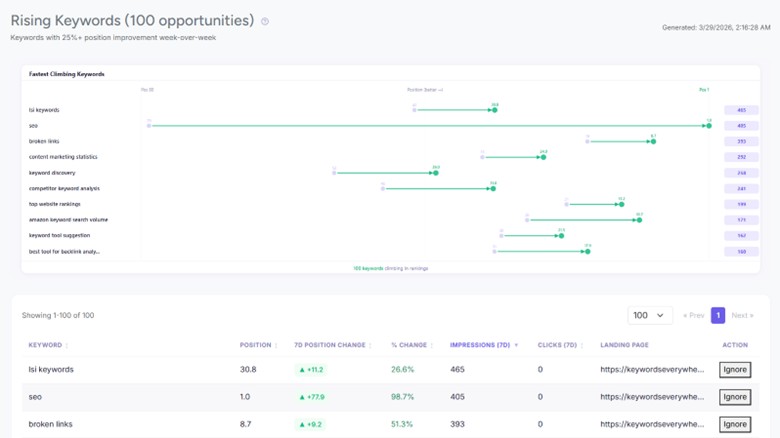
This report finds keywords that improved by 25% or more week over week. These are usually signs that something is starting to work, whether that’s better rankings, stronger topical relevance, or growing interest around the subject. Spotting these opportunities early gives you a chance to build on what’s already moving in the right direction by expanding the page, supporting it with related content, or strengthening internal links while Google is clearly responding well.
7. Device Ranking Gap
This section highlights keywords that rank at least three positions differently on desktop versus mobile. That kind of gap often points to a mobile experience issue, such as weaker page speed, poor responsiveness, or Core Web Vitals problems. It’s a useful report for spotting rankings that may look fine on one device but underperform on another.
If a keyword shows a big gap, start by reviewing the page on mobile for speed, layout, and usability issues that could be hurting engagement or crawl quality.
3. Device Cannibalization
This shows keywords where Google picks one page for desktop results and another for mobile results. That can be a sign that two pages are competing for the same query, but one appears more relevant or usable on a particular device.
Sometimes the issue is content overlap. Other times, it comes down to mobile UX, layout, or performance differences. Either way, it’s worth reviewing both pages to see why Google is splitting preference by device and then tightening the content focus, internal links, and page experience so the intended page becomes the stronger choice.
The reports above make content refresh much easier by pointing you straight to the pages and keywords that are most worth working on next. Instead of guessing what to update first, you get a clearer view of where the quickest wins and biggest leaks are. If you want a better sense of what to prioritize, read our recent blog on Content Refresh 101 for the full breakdown.
Settings, Alerts, Filters, and Navigation
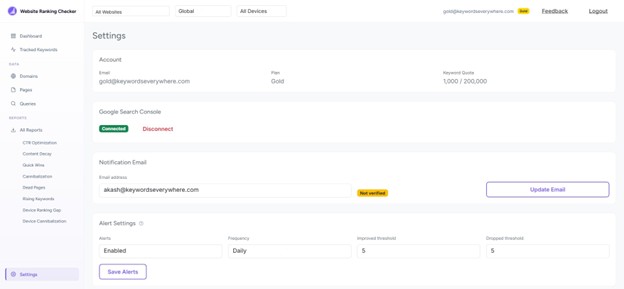
A lot of the control settings live in one place. On the Settings page, you can manage your account, your Google Search Console connection, your notification email, and your ranking alert preferences.
If you want email alerts, you can decide whether to get them daily or weekly and choose how much a keyword needs to move before the app notifies you. The thresholds are smart, too. Keywords ranking in positions 1 to 10 trigger alerts on smaller changes, while lower-ranked keywords need a bigger move, which helps avoid over-alerting from the normal fluctuations that happen deeper in the SERPs. You can also disconnect your Search Console account here at any time, and doing so immediately removes stored OAuth tokens and stops new data fetching.
From there, the rest of the app is easy to navigate: global filters for Website, Country, and Device apply across every major section, while page-level search boxes and Column Filters help you narrow things down further. You can sort tables by clicking column headers, move through larger datasets with pagination, and export filtered keyword data as a CSV directly from the Tracked Keywords page.
At a broader level, these controls make the tool more practical for day-to-day use.
Best Practices for Using Website Ranking Checker
Website Ranking Checker is easiest to get value from when you use it with a clear routine. You do not need to check every page, keyword, or report all the time. A few simple habits can help you focus on the right opportunities, catch important changes earlier, and use the tool more effectively:
1. Start with Quick Wins
If you’re not sure where to begin, start with the Quick Wins report. These are often the easiest opportunities to act on because the keywords are already close to page 1. For example, moving a keyword from position 12 to page 1 can bring in a pretty meaningful traffic lift without needing a huge amount of work.
2. Check the Dashboard daily
A quick daily look at the Dashboard can save you from missing bigger issues later. The Search Score trend line and the Most Dropped table are especially useful for spotting sudden changes that are worth catching early.
3. Track the keywords that matter, not everything
You do not need to monitor every query your site shows up for. Focus on keywords tied to revenue, leads, or traffic that actually matters to the business. A smaller, more intentional keyword list is usually a lot more useful.
4. Use the Queries page for discovery
The Queries page is one of the best places to find new keyword opportunities. Check it regularly to see what Google is starting to associate with your site, then decide which terms are worth adding to your tracked list. Also, be on the lookout for unexpected terms with growing impressions, since they can point to content ideas you haven’t mapped out yet.
5. Set up alerts
Turn on email alerts in Settings so you’re not relying on memory to check the app every day. The weekly digest is a good starting point because it keeps you informed without flooding your inbox.
6. Filter by domain when you have multiple sites
If you manage more than one website, use the domain filter in the top bar to focus on one site at a time. That way, your dashboard, reports, and keyword views stay tied to the website you’re actually working on.
7. Review the CTR report monthly
CTR improvements can be some of the lowest-effort wins in SEO. If you already rank well but aren’t getting enough clicks, revisiting titles and meta descriptions can help squeeze more traffic out of the visibility you already earned.
Used consistently, Website Ranking Checker can help turn SEO monitoring into something much more manageable. Instead of getting buried in raw data, you get a clearer way to spot issues early, prioritize better, and keep moving toward the opportunities that are most likely to make a difference.
Conclusion
A lot of SEO tools can show movement, but not all of them make it easy to decide what to do next. Website Ranking Checker is more useful in that sense because it helps connect the data to practical actions, from CTR improvements and content refreshes to page-1 pushes and early growth signals. You’re spotting problems earlier, finding opportunities faster, and staying focused on the pages and keywords most likely to improve traffic and performance over time. And the fact that it’s free makes it an even easier yes.
Overall, it helps lighten the monitoring load and keep your SEO work moving in the right direction.